I’ve written about Entra ID app registrations, enterprise apps and service principals before. My original article about the topic also covered delegated permissions and I mentioned the Microsoft Graph Command Line Tools like 16 times.
Today I want to talk about how having different Entra ID Admin roles results in different experiences for admins when adding delegated permissions to the Microsoft Graph Command Line Tools.
Note: There’s a TLDR; section at the end of this blog post.
Let’s assume the following scenario:
You are an IT admin and need to use Microsoft Graph to read your tenant’s administrative units. You want to use the official Microsoft Graph Command Line Tools app and sign in interactively using your own user/admin account.
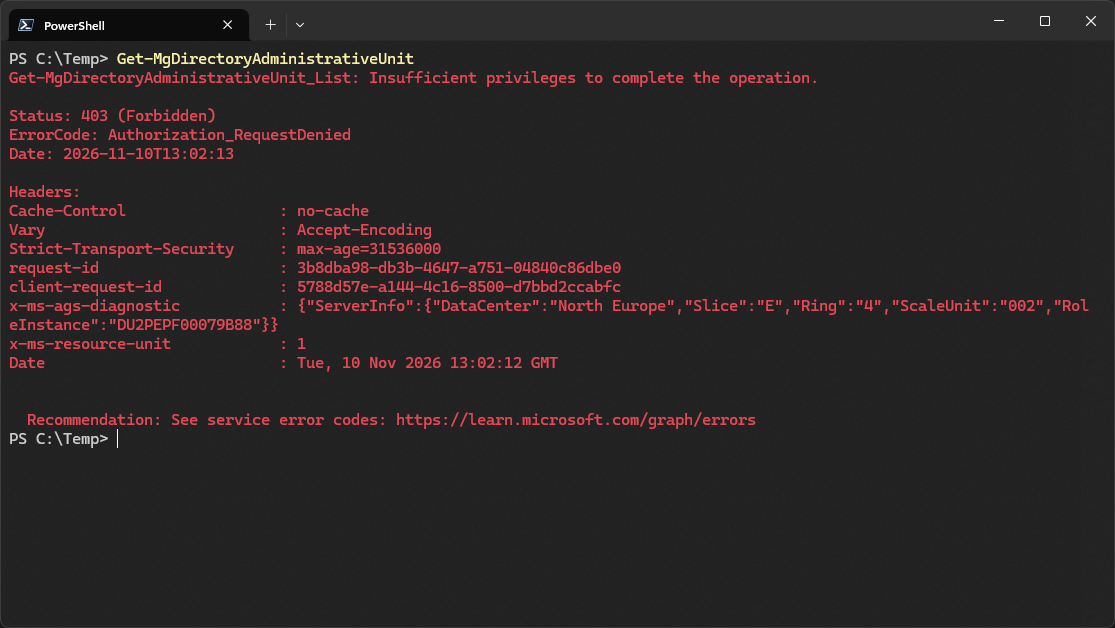
First you sign into Graph by using Connect-MgGraph and then you run Get-MgDirectoryAdministrativeUnit. Even though you can view admin units in the portal with the same account, Graph greets you with a 403 (forbidden) error. This is because the delegated Graph permission to read admin units hasn’t been consented to the Microsoft Graph Command Line Tools enterprise app.
You can inspect the available permissions in the current session by running the following snippet:
| |
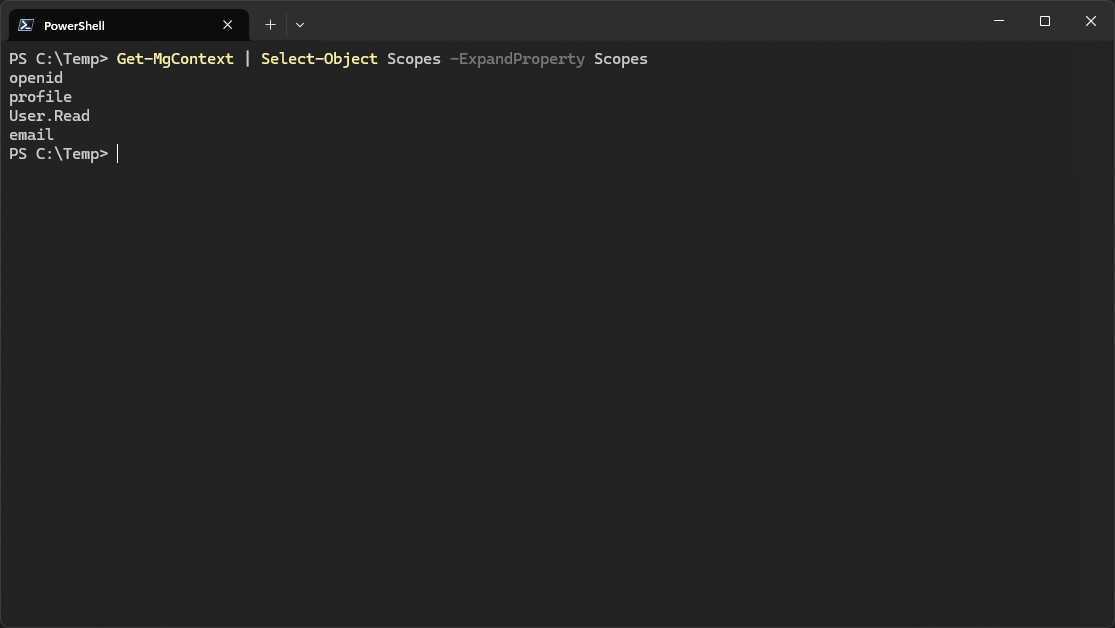
As you can see, the Microsoft Graph Command Line Tools app currently only has the default OIDC (OpenID Connect) permissions granted. The required AdministrativeUnit.Read.All permission is missing.
Adding a new delegated permission isn’t rocket science but in most cases, including AdministrativeUnit.Read.All it requires admin privileges.
Because Microsoft Graph Command Line Tools is registered in one of Microsoft’s tenants and they own the app registration, we can’t just add a new permission to the service principal in the enterprise apps section in the portal. The portal simply doesn’t support that. However, we can still see what permissions have already been granted.
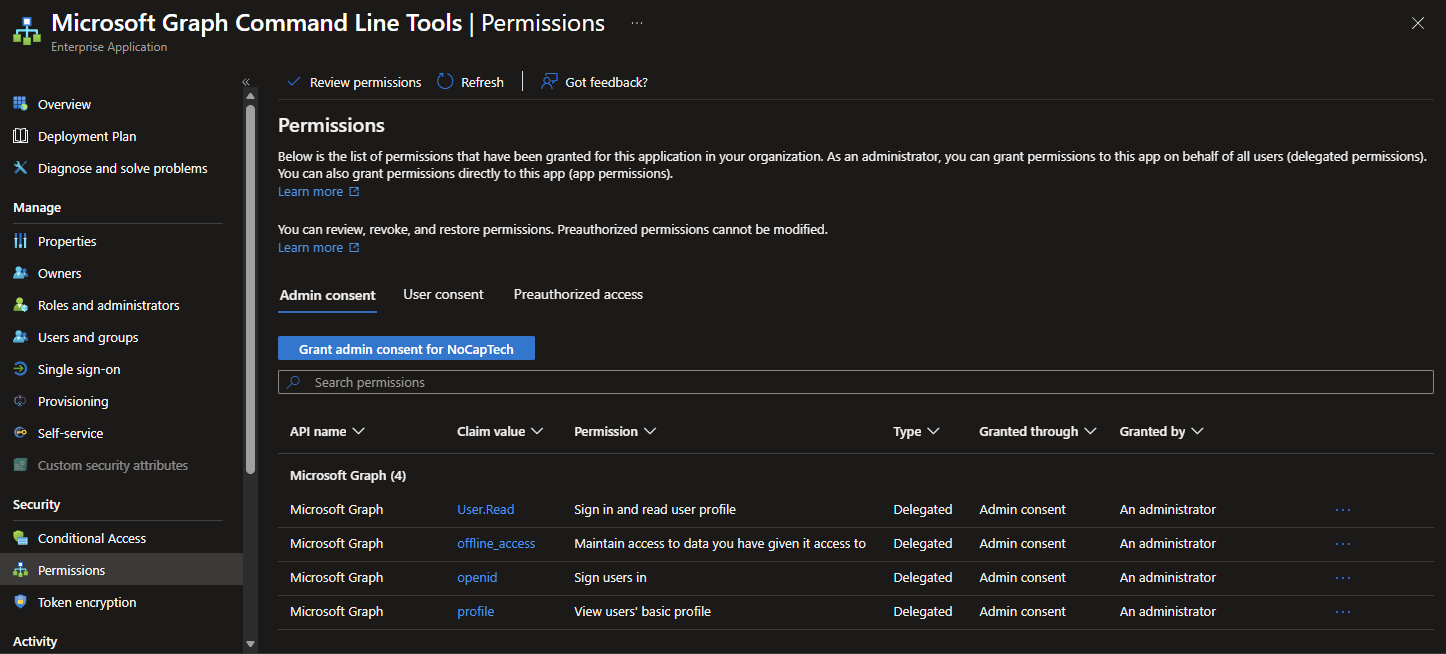
Here we can see that the permissions listed in the portal match the output of Get-MgContext. (With the exception that email is called offline_access in the portal. I have no idea why that is.)
The portal only offers a way to revoke but not to add new permissions.

How To Add Permissions to an Enterprise App?
If you’re reading this, you’re probably already familiar with adding permissions to service principals for which you own the app registration. In that case, it’s much easier to add the permission. On app registrations, you get a nice little Add a permission button and you can click Grant admin consent afterwards.
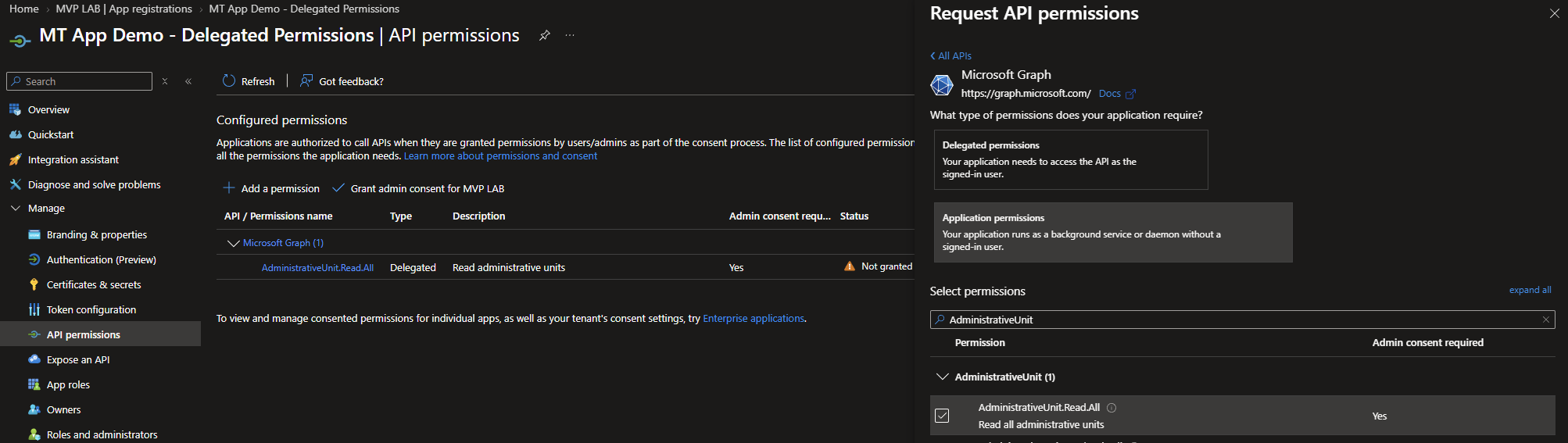
In case you’re new to this and this confuses you more than anything else, I highly suggest to read my original article and the follow up about app registrations and service principals. They go really deep on the topic and i.e. also explain that even though the portal makes it look like permissions are granted to an app registration, they’re actually granted to an app’s service principal and never to an app registration.
In other words, Microsoft owns the app registration for the Microsoft Graph Command Line Tools and they provide it with only the minimal OIDC scopes configured as required delegated permissions. On app registrations, you only tell an app what permissions it needs to work, but app registrations are not security principals and therefore never hold any permissions.
Since there is no app registration for the Microsoft Graph Coomand Line Tools in your tenant, you need to add new delegated permissions to the service principal directly, which again, is not possible in the portal.
The easiest way to add a new permissions is to just include the new scopes in the Connect-MgGraph command:
| |
If the included scopes are not already consented, you’ll be asked to grant consent in a browser pop up. However, the experience you get with this is different for Privileged Role and Cloud Application Administrators versus Global Administrators which is what this blog post is focusing on.
Adding New Permissions as Global Admin
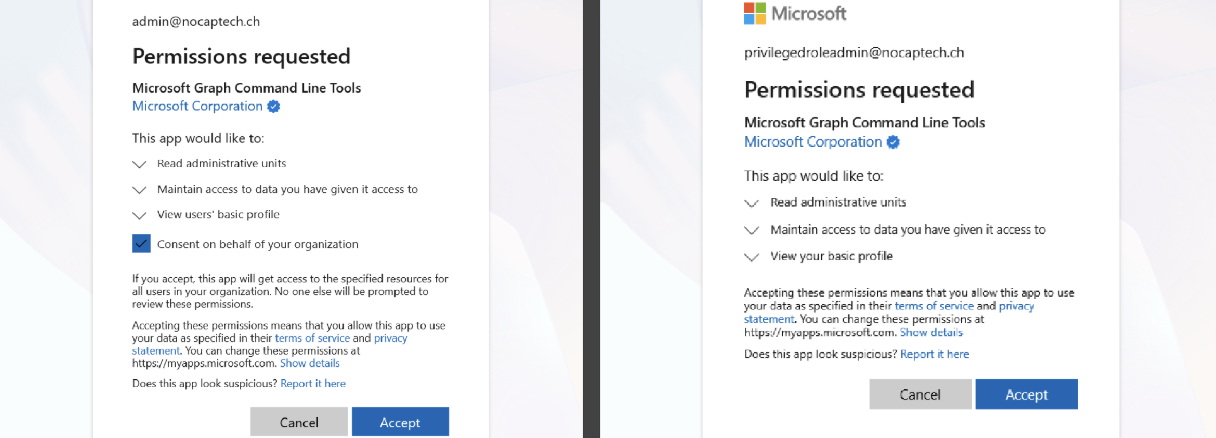
When you run Connect-MgGraph with a new scope as Global Admin, you’ll see a checkbox for Consent on behalf of your organization.
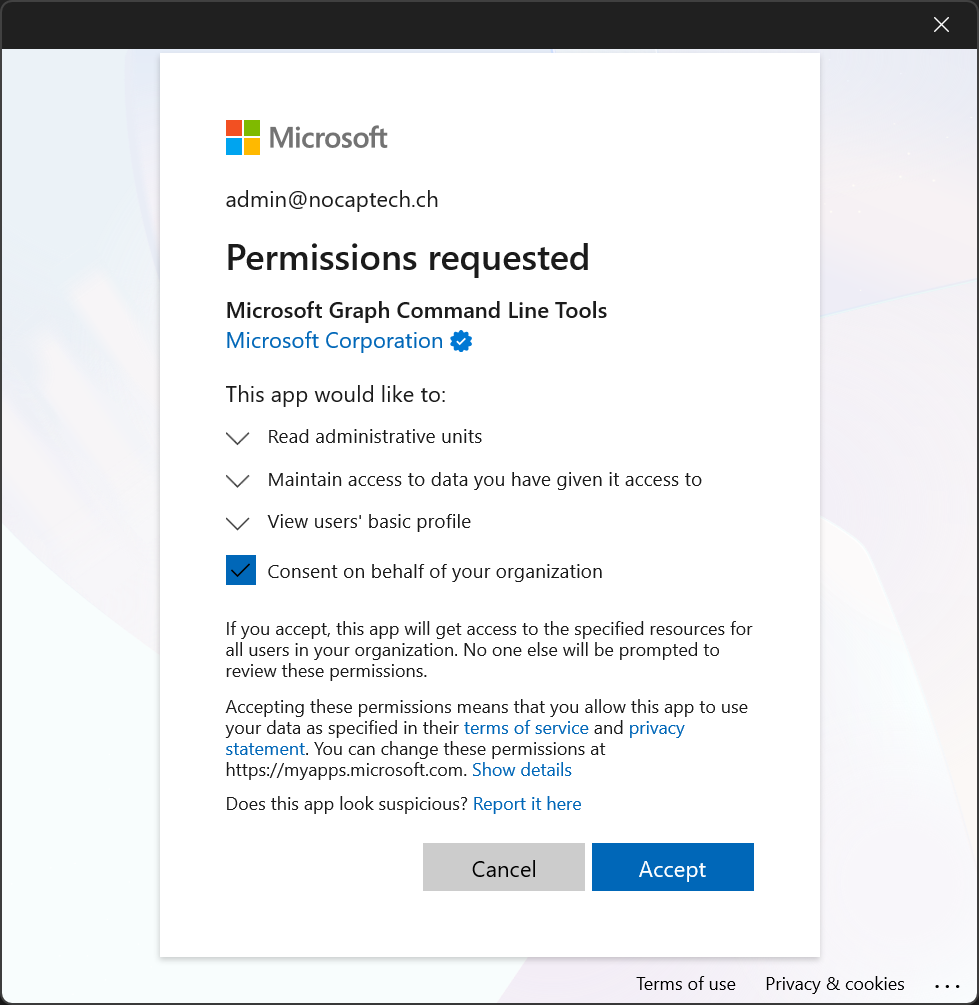
Checking this allows you to consent to the permission for any user in your directory. Of course they still need to be allowed to sign into the app in the first place. And since this is a delegated permission, their user account must also hold the correct Entra ID admin role to read admin units. Adding this permission does nothing by itself yet. It merely allows users who are already allowed to read admin units in the portal to also read them via Graph.
If you don’t check it, the permission will be available only for your account and of course any potential pre-existing user consents for that permission. (Even other Global Admins would need to consent again.)
Adding New Permissions as Privileged Role or Cloud App Admin
If you run the same command as a Privileged Role or Cloud Application Administrator, the pop up doesn’t show you the checkbox to consent on behalf of your organization. Clicking Accept has the same outcome as when a Global Admin grants consent without checking the box.
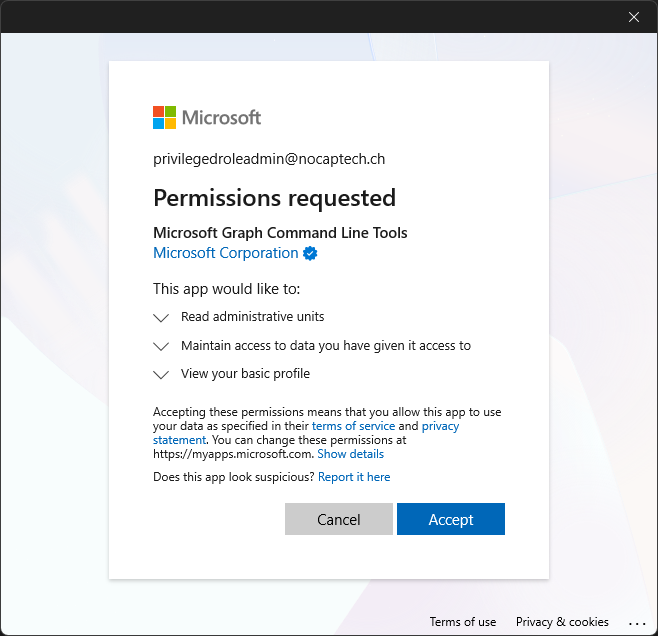
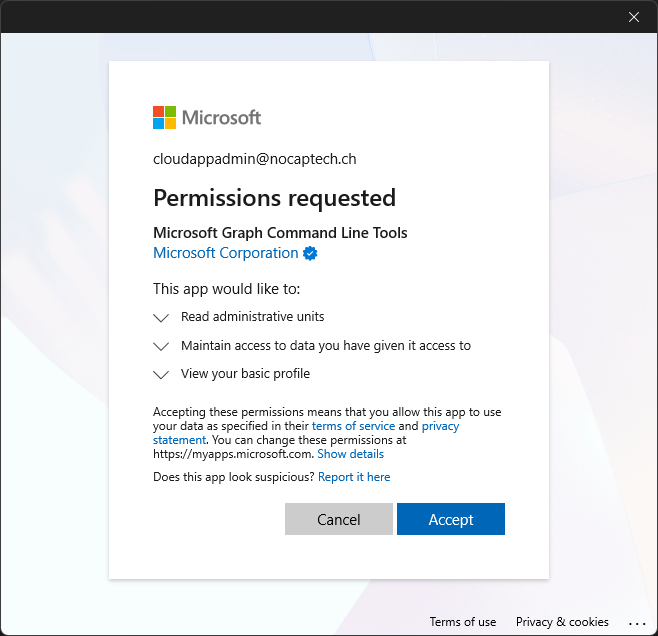
I deliberately chose Privileged Role Administrator and Cloud Application Administrator as examples in comparison to a Global Administrator because these roles are technically allowed to grant admin consent but they don’t support it when new scopes are included with Connect-MgGraph.
Cloud App vs. Privileged Role Admin
The difference between Cloud App Admin and Privileged Role Admin is that Cloud App Admins can only consent to delegated Microsoft Graph permissions while Privileged Role Admins can also consent to application Microsoft Graph permissions.
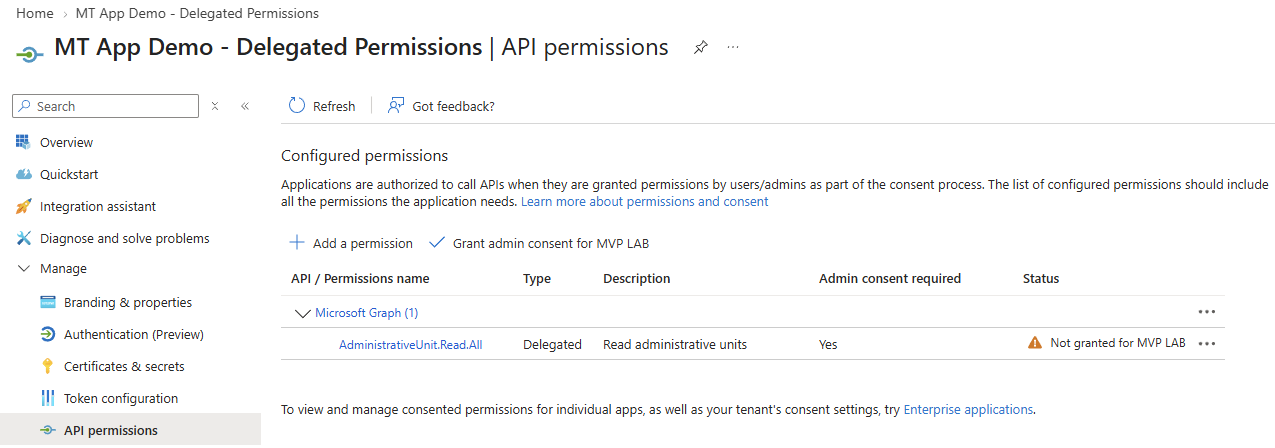
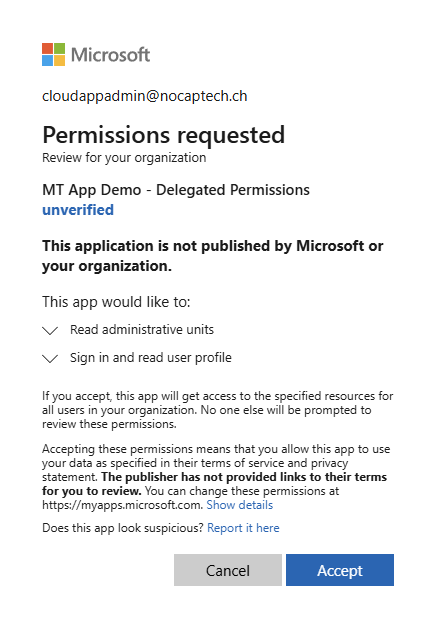
To demonstrate this, I’ve registered two multi-tenant apps in a different tenant where each app only requires delegated or application permissions and tried to consent to them using two different accounts that each only have either Cloud App Admin or Privileged Role Admin.
As you can see on the left screenshot, the delegated AdministrativeUnit.Read.All permission requires admin consent. On the right, I’m adding the multi-tenant app to a different tenant using a user that only has Cloud App Admin and I can see the Accept button. This means that the Cloud App admin is allowed to grant consent in this case.
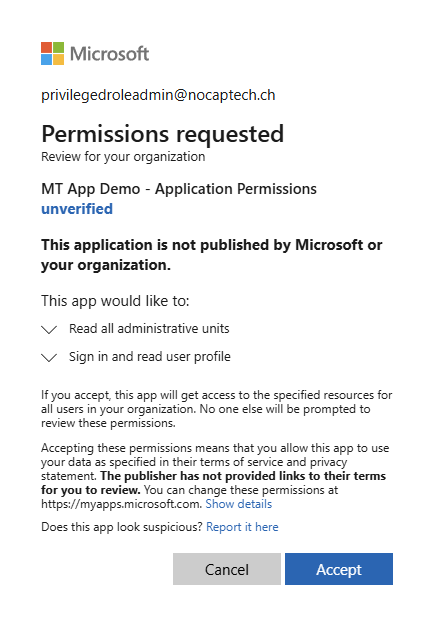
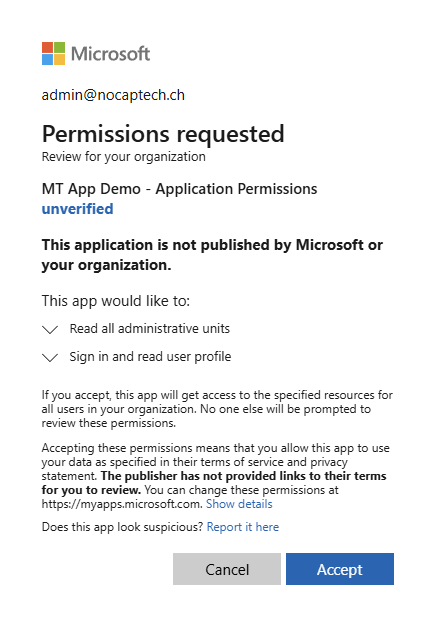
Now this is a different multi-tenant app with the same permission but this time I’ve added it as a required application permission.
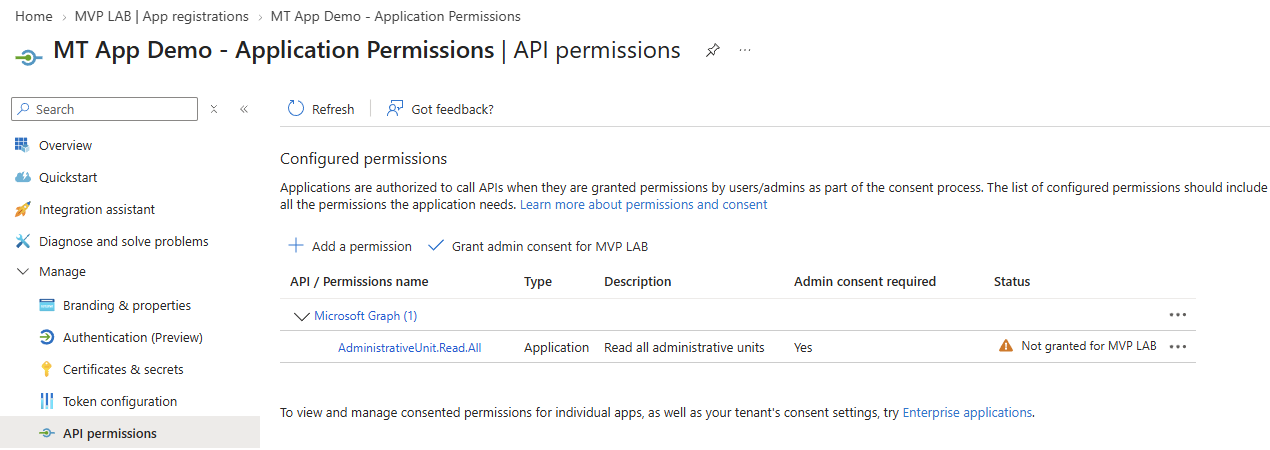
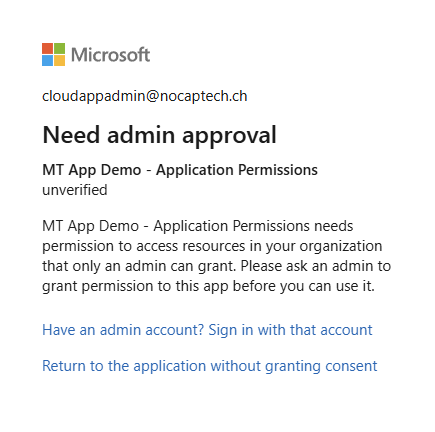
In this case, the Cloud App Admin is not permitted to grant consent. Granting consent to application permissions requires at least Privileged Role Admin.
And since this is an application permission, there is no user-level consent and thus no checkbox for Consent on behalf of your organization. Consent is granted to the entire organization as indicated by the Review for your organization subtitle. This dialog looks exactly the same for a Privileged Role and a Global Admin.
Can a Cloud App or Privileged Role Admin Grant Org-Wide Consent to an Enterprise App?
So far, we’ve established that Cloud App and Privileged Role Admins are technically allowed to grant org-wide consent to delegated permissions but we’ve also seen that the consent dialog simply doesn’t provide the checkbox to do so.
Let’s see what happens if we grant consent without the checkbox. I’m doing this with the Microsoft Graph Command Line Tools app again by running Connect-MgGraph -Scopes "AdministrativeUnit.Read.All again and not with the multi-tenant demo app.
In that case, the permission only appears under User consent on the enterprise app. The permissions in Admin consent stay the same.
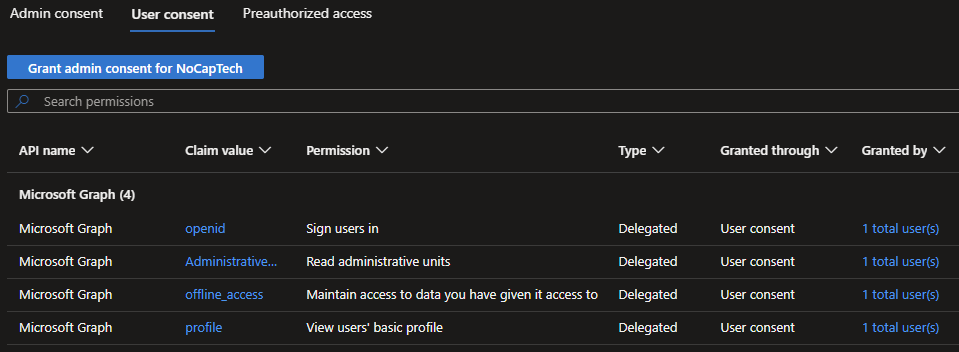
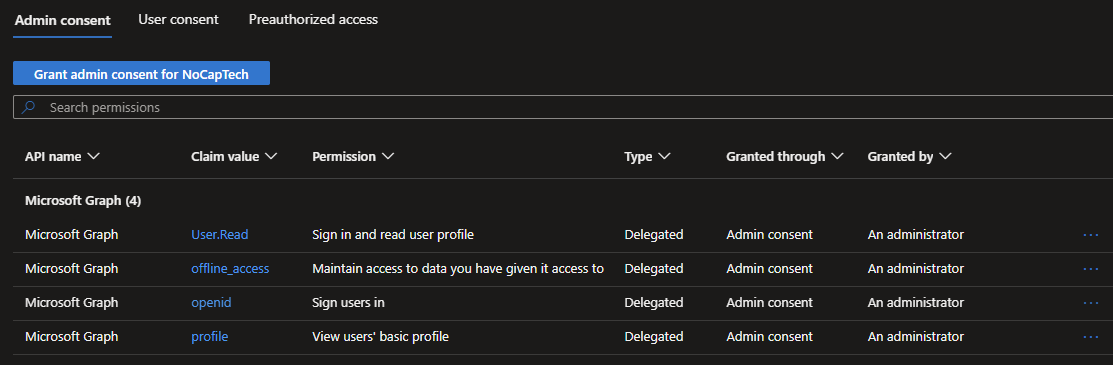
That means that only the account that granted the consent can read admin units via Graph. (Again, given that there were no other pre-existing user consents.)
I don’t have an answer as to why the checkbox is not shown for Cloud App or Privilege Role admins. All I can say that it’s possible to grant org-wide consent using Graph PowerShell code.
Since this is a high-privilege operation, whatever app you use to sign into Graph with your Cloud App or Privileged Role admin already needs Application.Read.All and DelegatedPermissionGrant.ReadWrite.All granted.
PowerShell Script
| |
When using Update-MgOauth2PermissionGrant requests are not additive and you need to supply the full list of permissions again. That’s why the code above first reads existing permissions and then adds the new ones before it fires. The key piece to granting permissions org-wide is consentType eq 'AllPrincipals'.
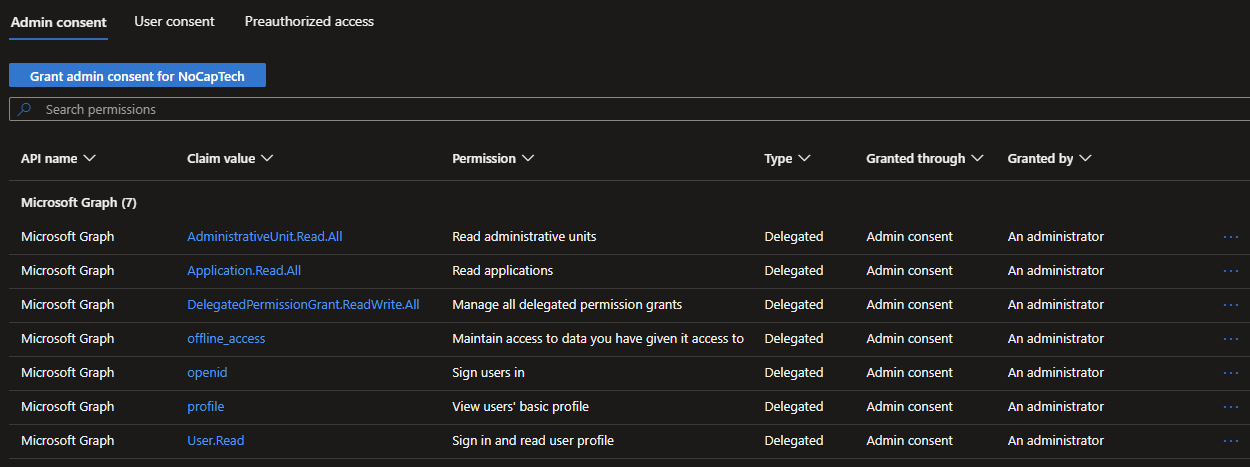
After running the script as a Cloud App Admin, we can now see that AdministrativeUnit.Read.All is also present on the Admin consent tab. This does not change existing user consents. (The two permissions needed by the script (Application.Read.All and DelegatedPermissionGrant.ReadWrite.All) are present in as well because I added them before running the script.)
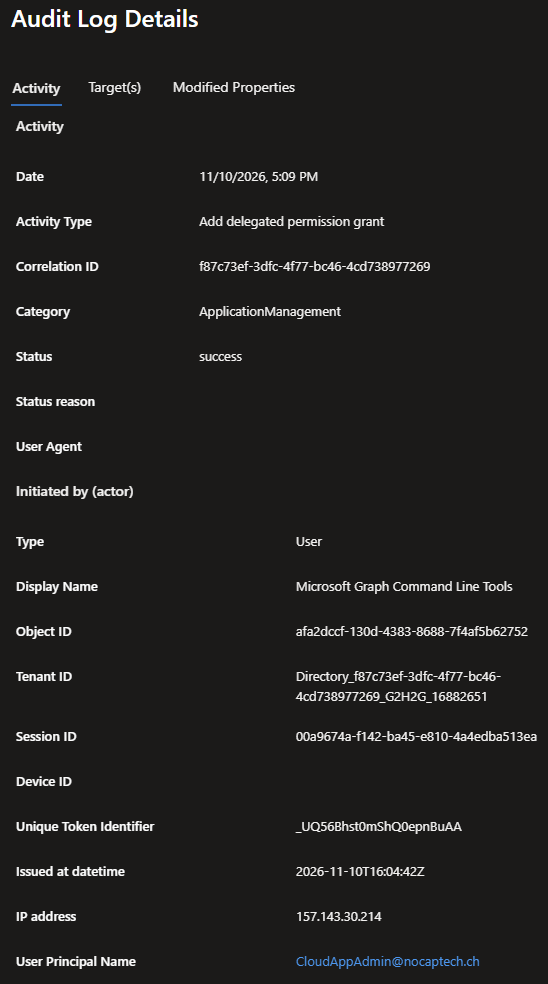
The audit log confirms that the delegated permission grant was indeed granted by the account with the Cloud Application Administrator role.
Microsoft Learn also states this:
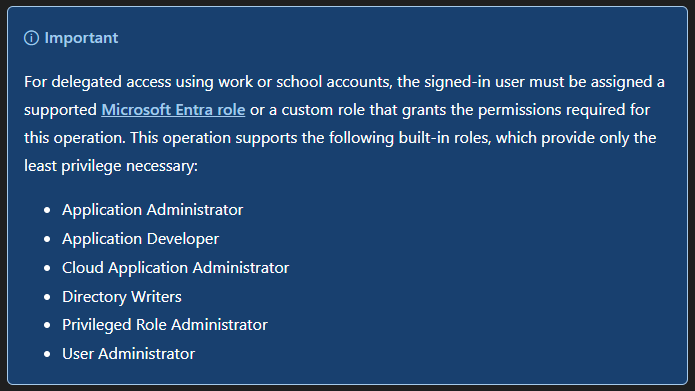
I did not test this with all the roles listed. I only tested the above code with Cloud App and Privileged Role Admin. The result was the same for both roles.
One More Thing
I know that the Grant admin consent button on the Microsoft Graph Command Line Tools enterprise app can look quite tempting…
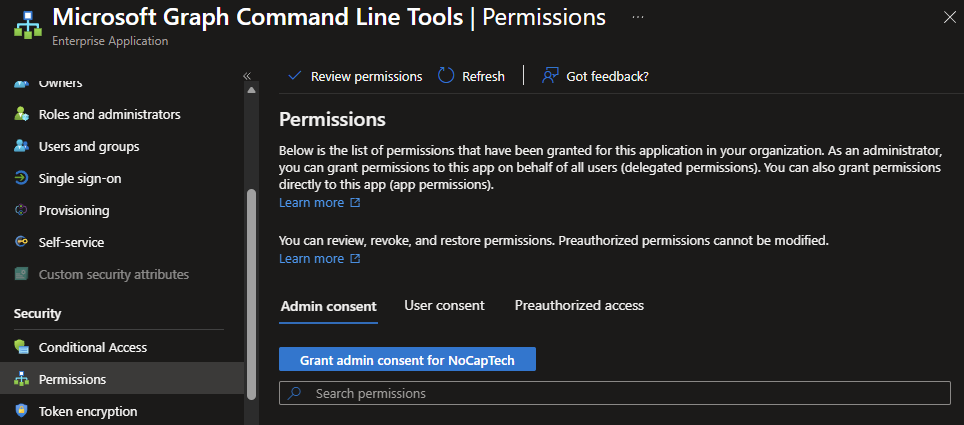
…but do not click it. I mean you can click it but do not click Accept in the consent dialog.
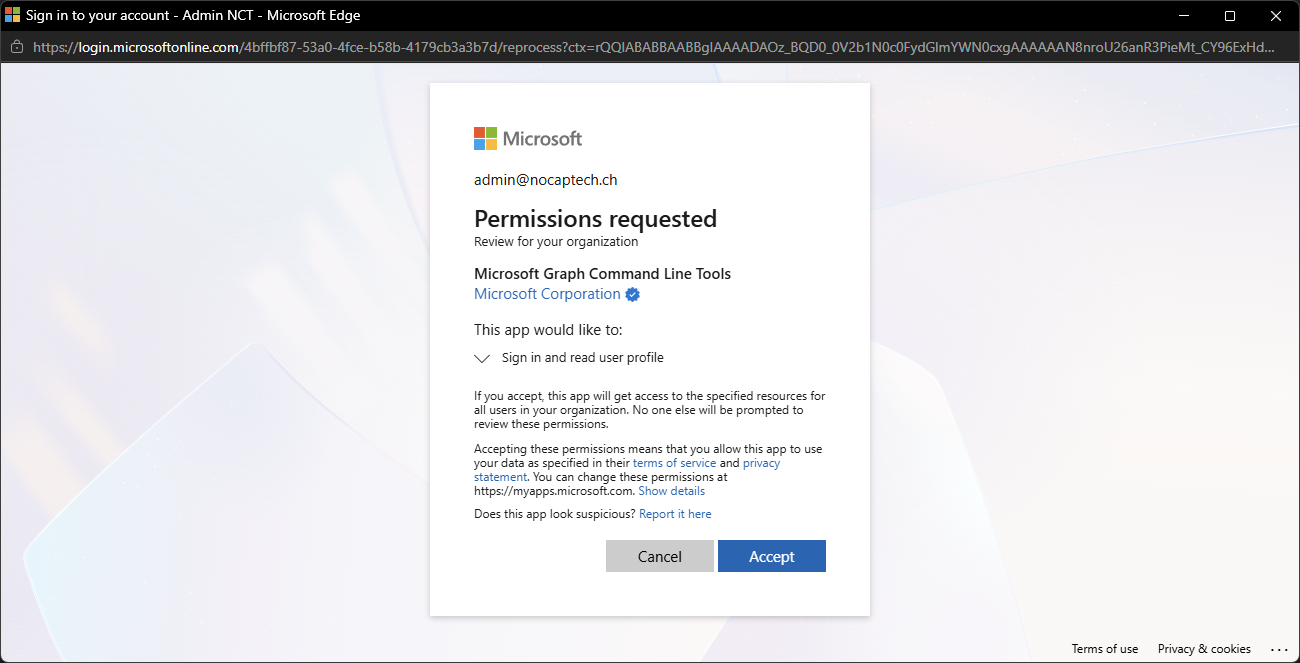
As I’ve explained before, the owner of a multi-tenant app defines required permissions on their app registration in their tenant. And Microsoft provides the Command Line Tools only the User.Read scope. (I believe the other 3 OIDC scopes are added by default when you use Connect-MgGraph for the first time.)
If the Command Line Tools app required anything else, organizations wouldn’t be able to granularly control what permissions they want to allow on the app because admins needed to consent to everything that’s configured on the app registration.
That’s why the dialog only lists and requests Sign in and read user profile as required permissions when you click Grant admin consent from the portal.
As we saw in PowerShell, permissions aren’t additive so clicking Accept will nuke all your previous admin consents. This can also be done with a Cloud App or Privilege Role Admin. User consents are also preserved in this case though.
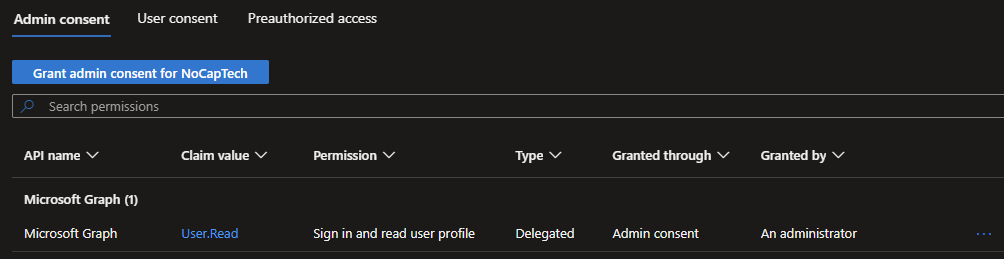
So yeah, don’t be that guy (or girl) that clicks that button and takes away all previously consented permissions from the Graph Command Line Tools app. It won’t take long until people will start shouting your way. That being said, the Command Line Tools accumulating lots of permissions over time has been a long standing discussion point in the community.
But again, all delegated permissions require users to actually hold the Entra ID admin roles for the actions they want to perform in Graph. Granting delegated permissions to the Command Line Tools app only allow admins to perform these actions via PowerShell/Graph in addition to the portal.
But it’s never a bad idea to review and clean up permissions. Especially since AI Agents and Tools like GitHub Copilot etc. can also run code in your user context. So, before you sign into Graph in a session initiated by an agent, make sure to double check what permissions will be available to the agent before you sign in with your own user account.
If you want your agent to be able to do specific tasks in Graph, I suggest to create dedicated, least-privilege scoped apps and service principals instead of just letting it use the Graph Command Line Tools app.
TLDR;
Cloud Application and Privilege Role Administrators can grant org-wide admin consent for delegated permissions for the Microsoft Graph Command Line Tools only through Graph. A simple Connect-MgGraph -Scopes {Permission.Name} only shows the Consent on behalf of your organization checkbox in the consent dialog for Global Administrators.
Adding org-wide consent for delegated Graph permissions through Graph requires DelegatedPermissionGrant.ReadWrite.All. If you want to use the script provided in this blog post, you’ll also need Application.Read.All because it needs to find you tenant’s unique service principal Id for the Command Line Tools app.
Cloud App Admins can grant admin consent for delegated Microsoft Graph permissions only. Only Privileged Role and Global Admins can grant Microsoft Graph application permissions. Cloud App Admins might still be able to grant application permissions for resources other than Microsoft Graph though. You can find more info on this here.