It’s been a while since I’ve written something about Teams Phone. And it’s been almost two years since I’ve published my make-shift solution for getting notified about missed calls in call queues.
Since then, Microsoft finally shipped shared call history in Queues app in January 2026. I was still traveling the world at this time so it took me a while to finally catch up.
The Elephant in the Room
I just have to mention it again. I’m extremely disappointed that it took Microsoft this long to ship a basic calling feature like shared call history and that they made this a feature of Teams Premium.
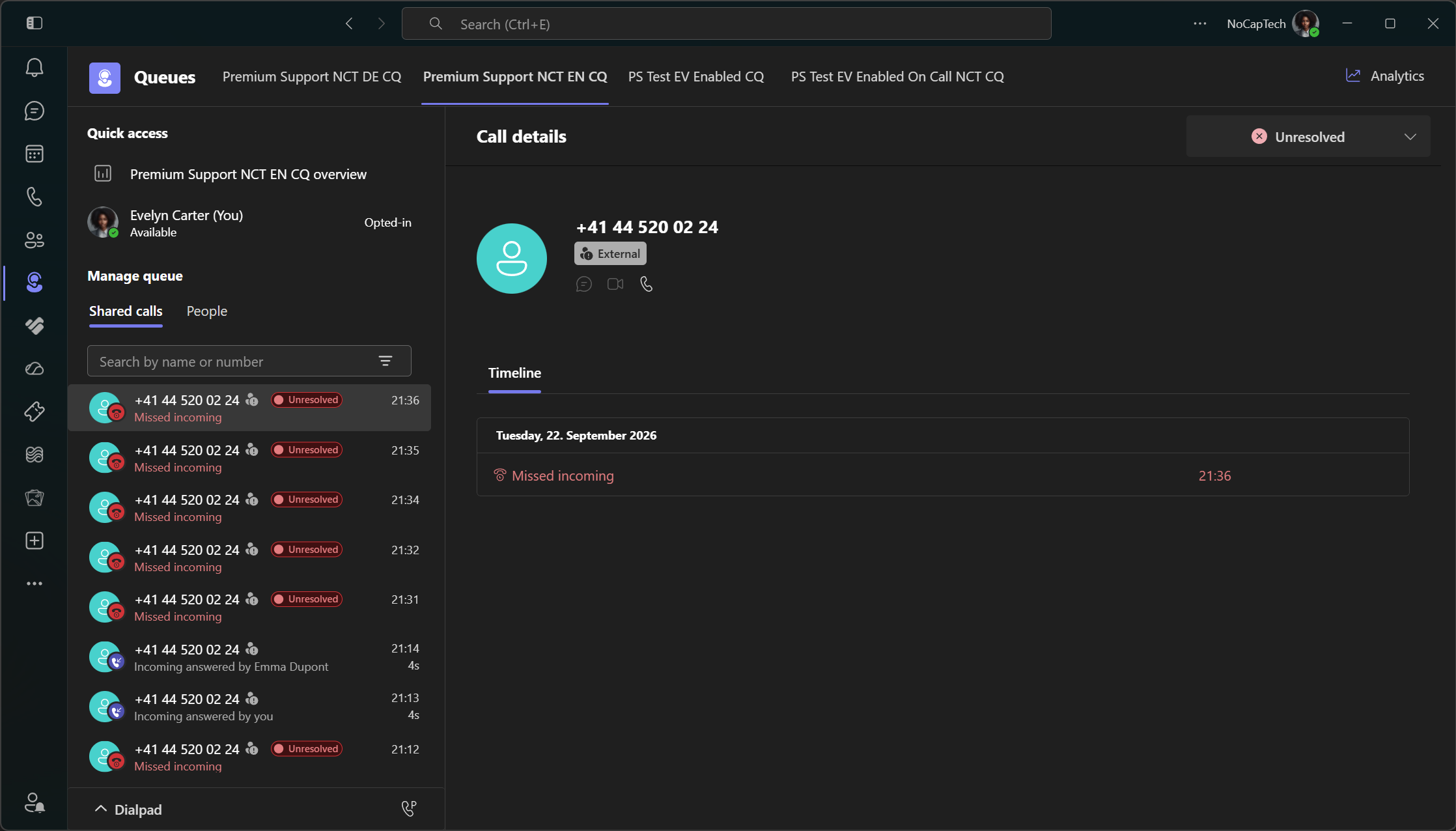
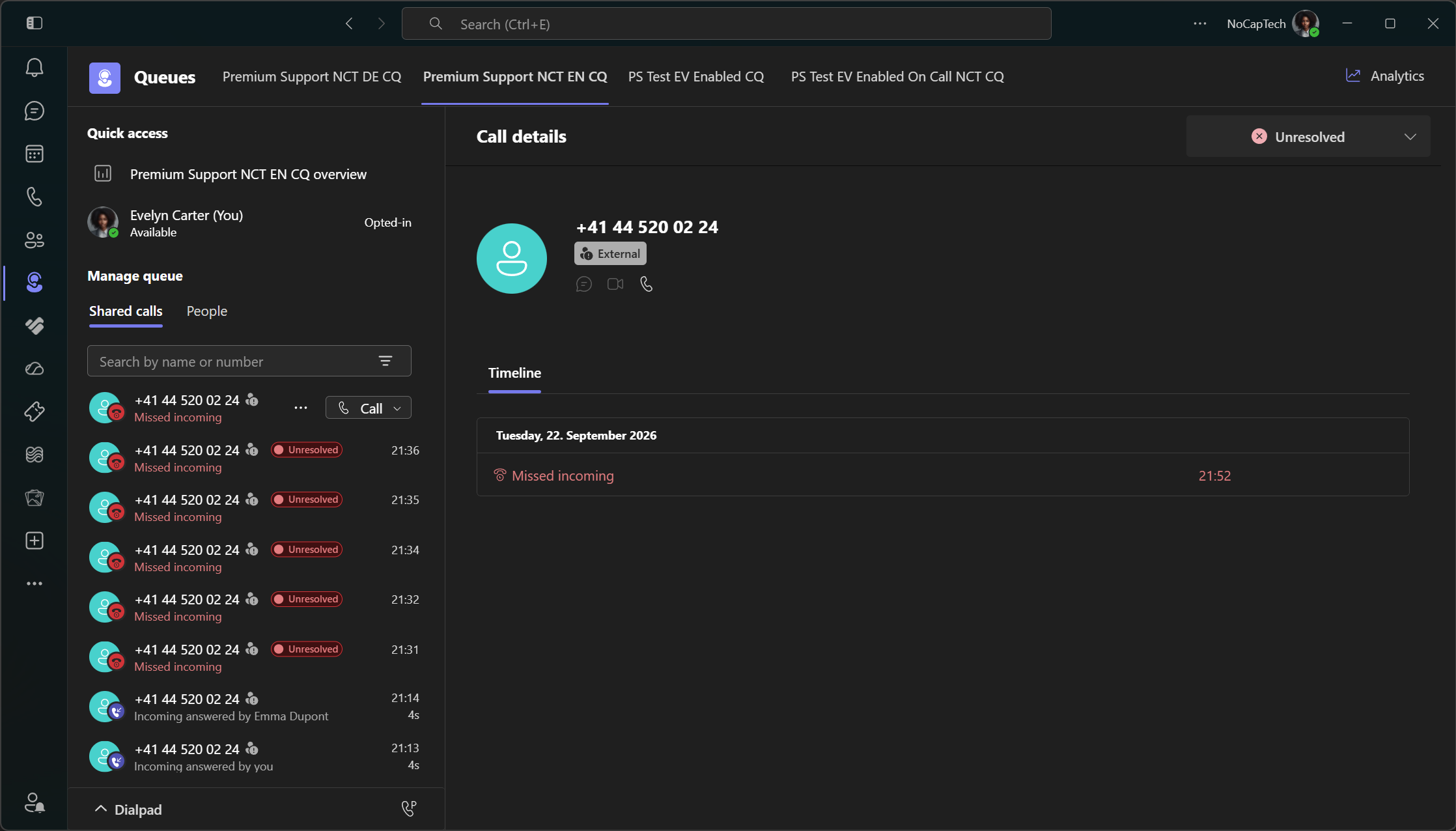
Shared Calls Experience in Queues App
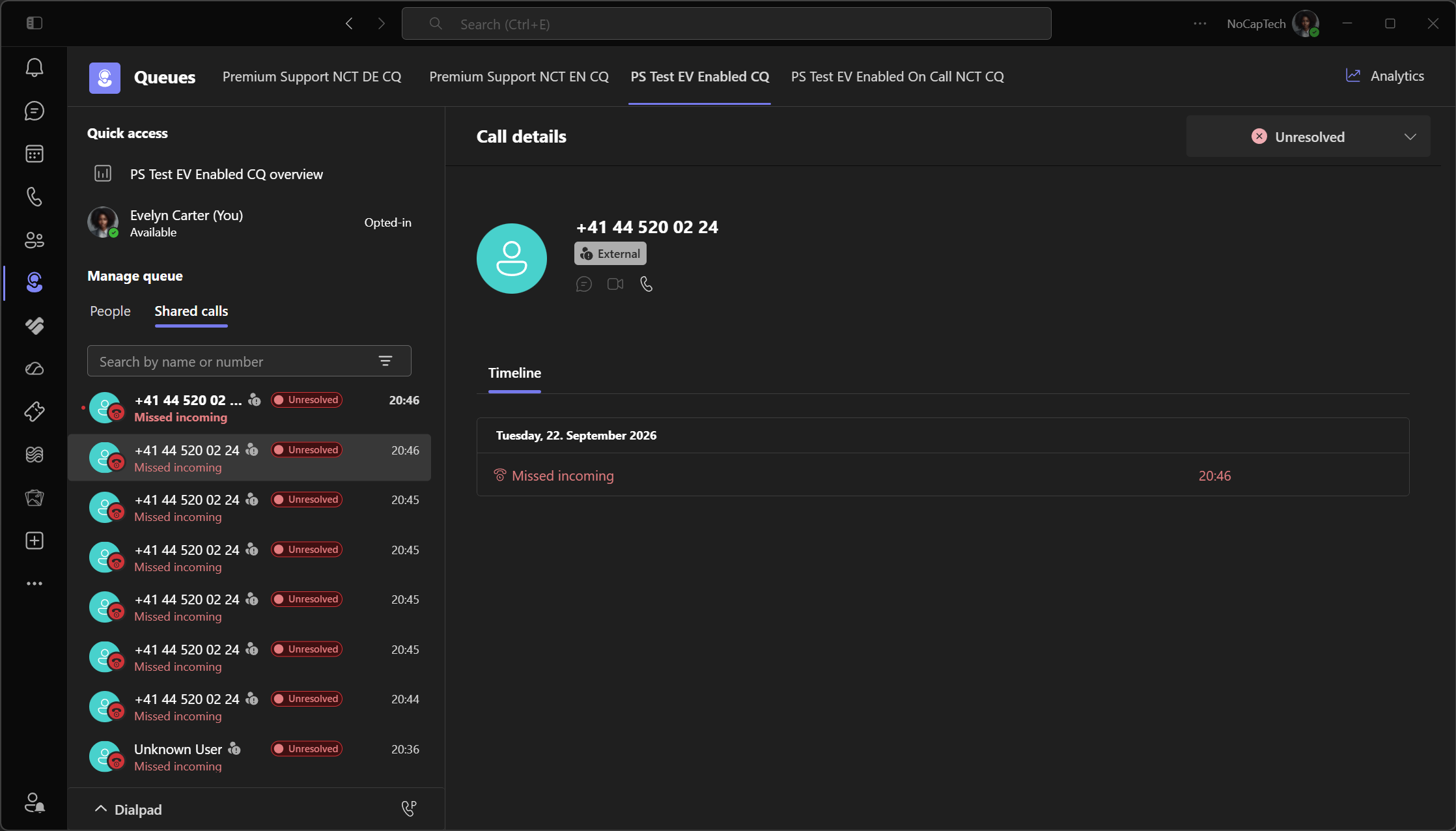
But that’s not even the whole story. While it’s finally possible to see missed calls in a queue now, Teams still doesn’t notify people about them. It’s still a reactive process. Somebody has to go into the Queues app and check for missed calls periodically.
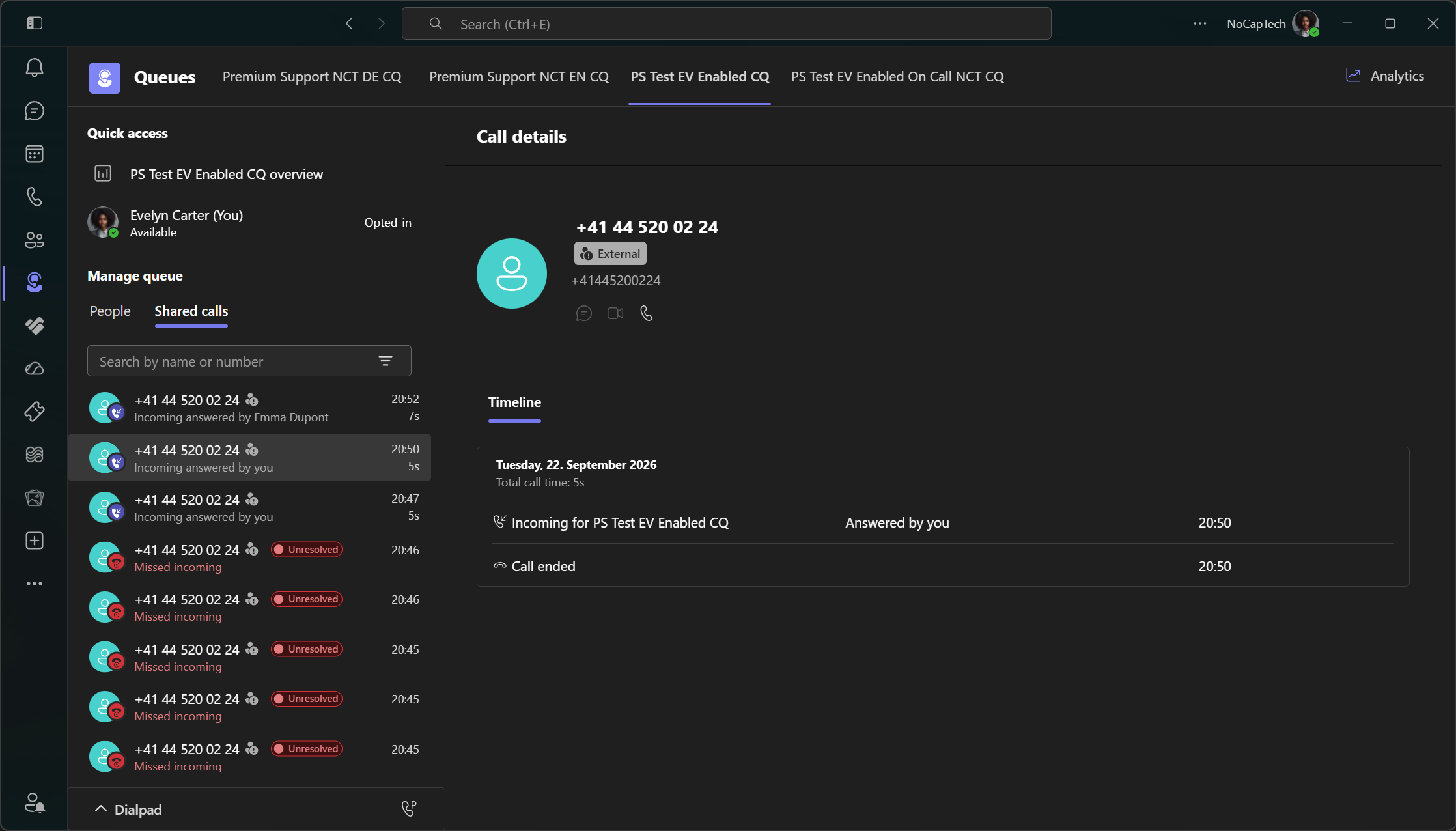
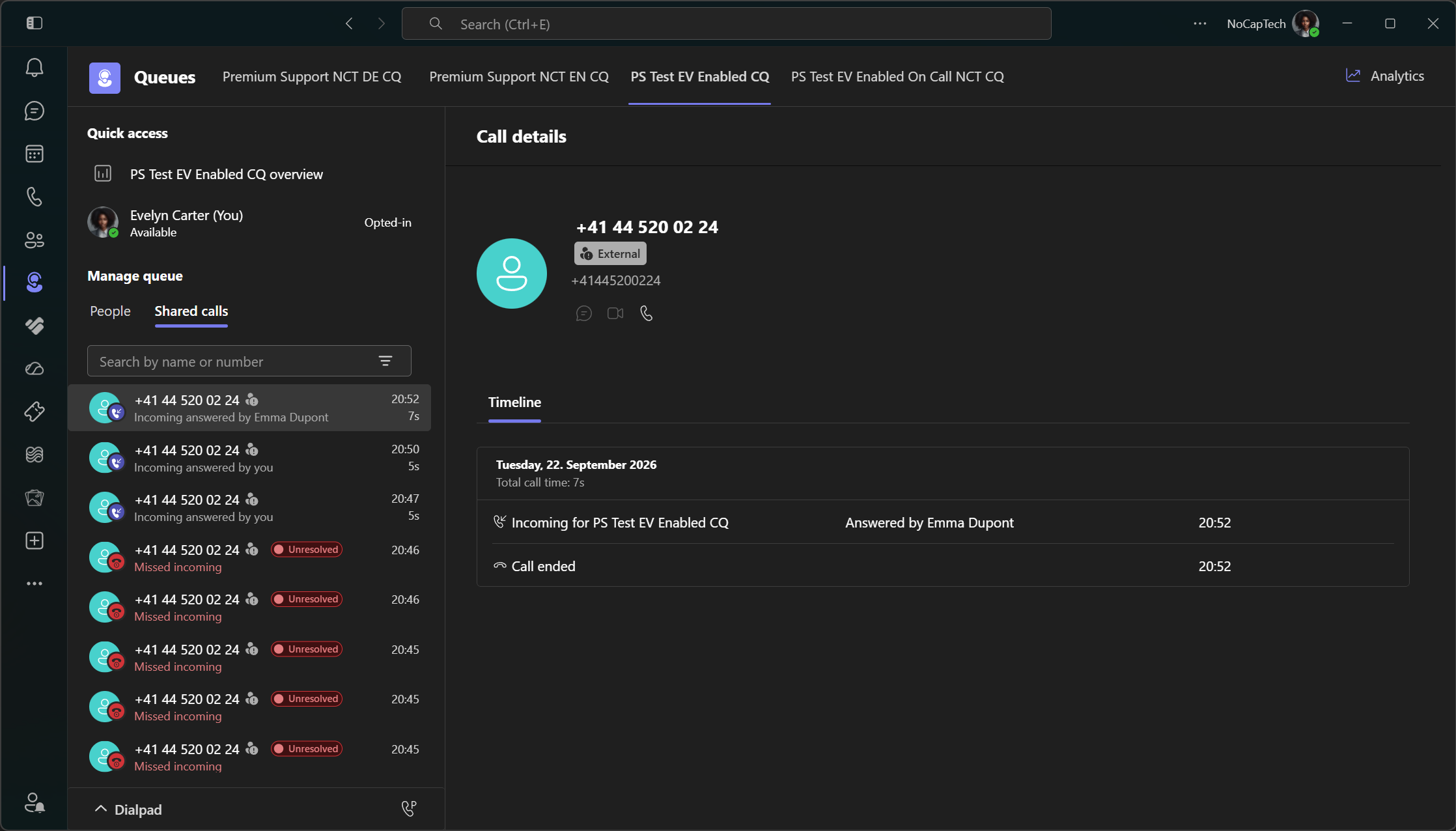
The Shared calls tab also lists answered calls including who answered a call.
Missed Calls with Nested Queues
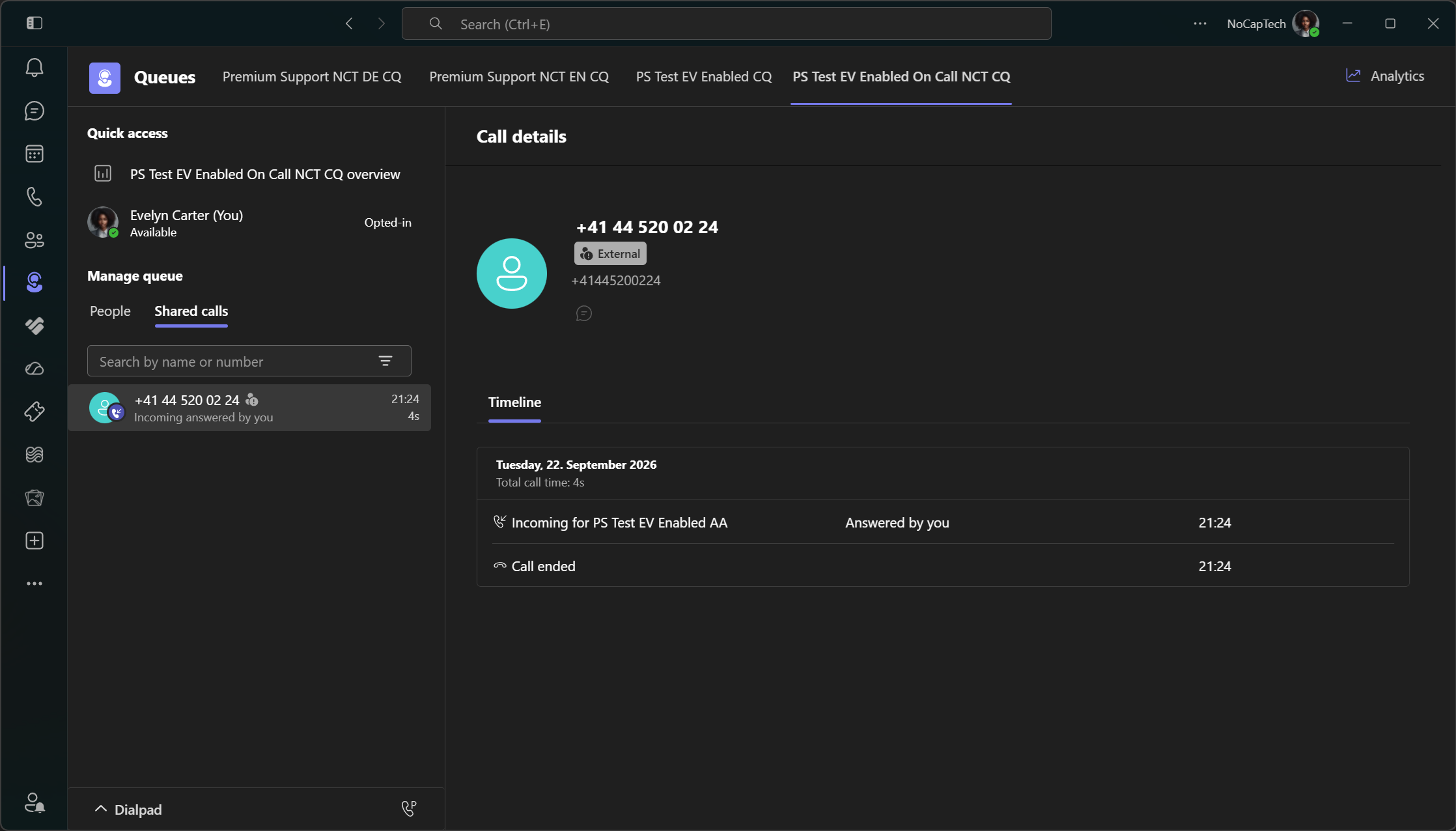
I only tested this with one nested queue. But in my case, a call missed in the first queue that flowed over to the second queue only got added to the call history of the second, nested queue. As expected, this is the same with answered calls, they’re only displayed in the call history of the queue in which they got answered in. Anything else wouldn’t have made any sense.
However, there isn’t any information available about which queues a call traversed before landing in the final one. The call I answered in the nested queue displays Incoming for {Auto Attendant Name} while calls answered in the queue directly behind the auto attendant show as Incoming for {Call Queue Name}.
Missed Calls Resolution
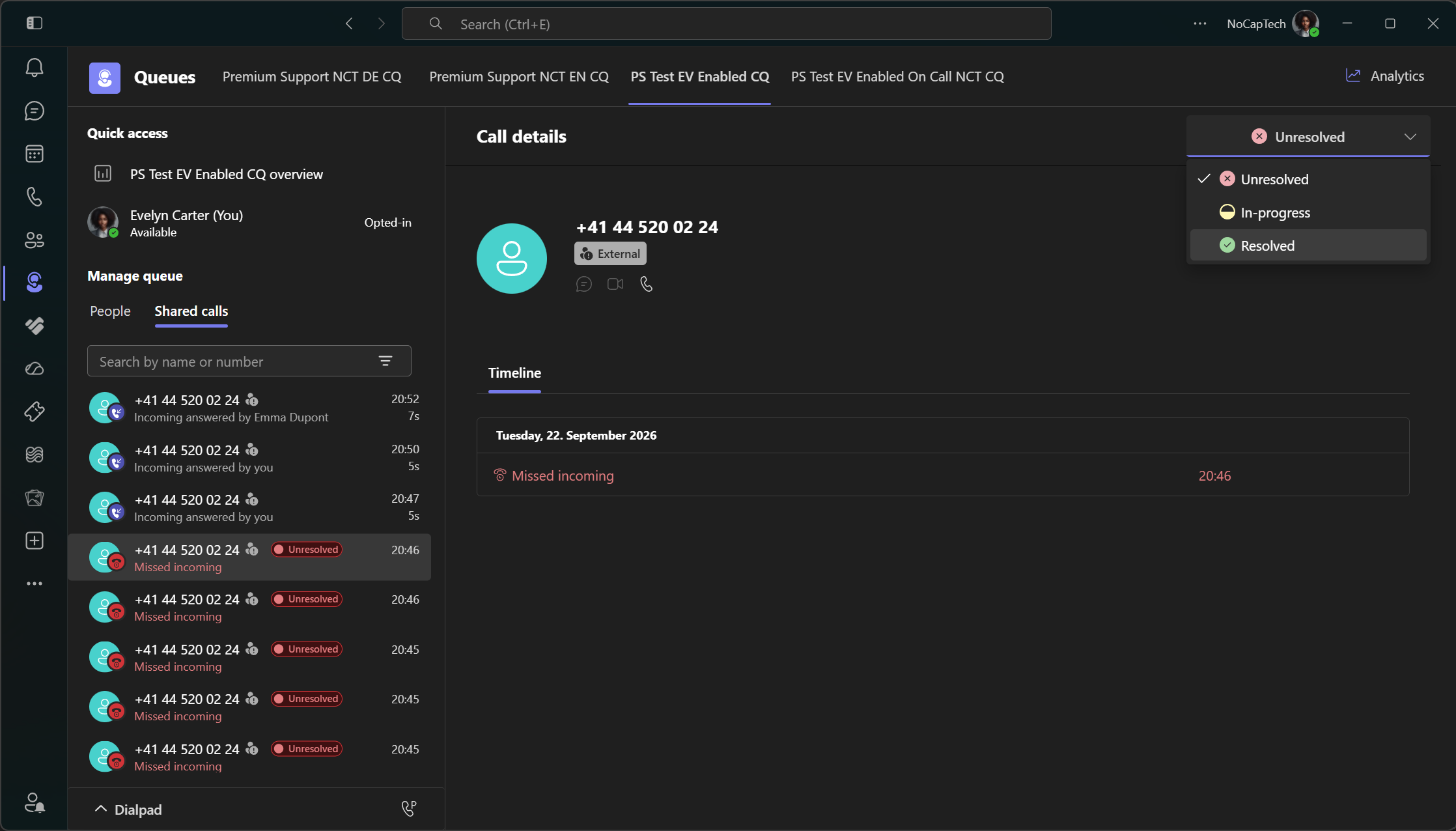
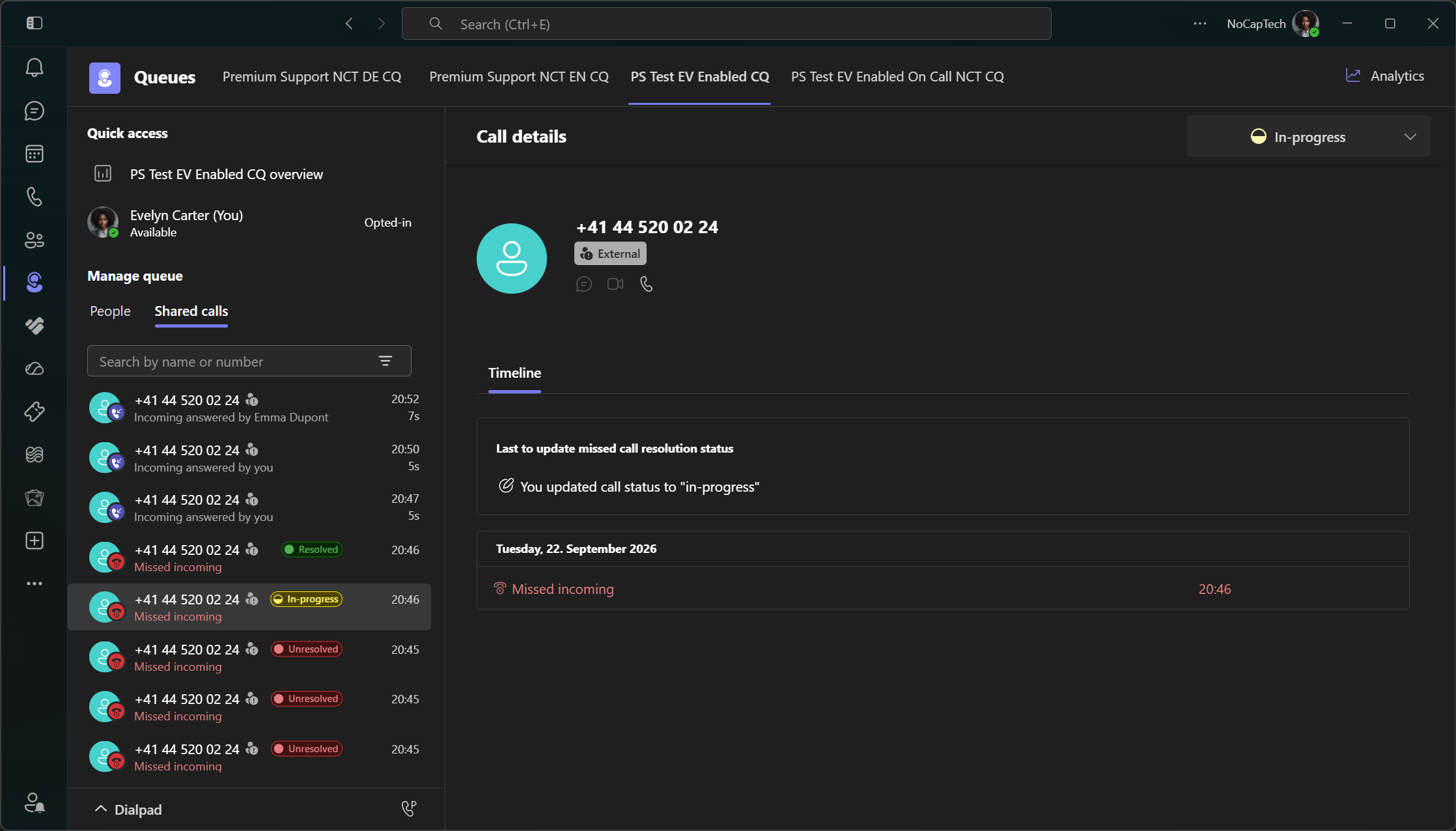
Missed calls carry an additional property for their resolution state. Call queue agents can then update the status of a call from Unresolved to In-progress or Resolved. Call history entries will also display a badge pill next indicating their status next to the caller number.
Queues without Shared Call History
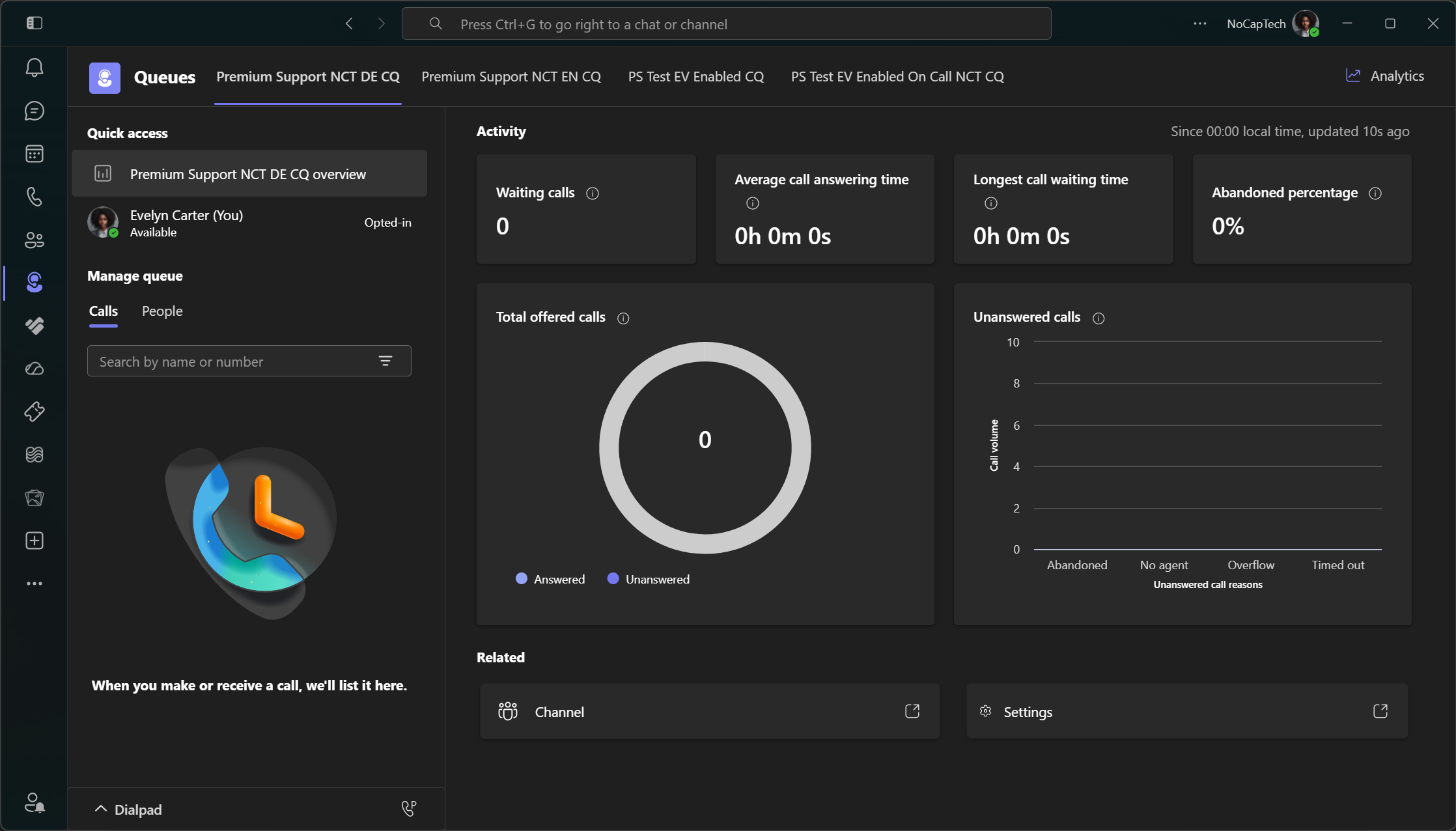
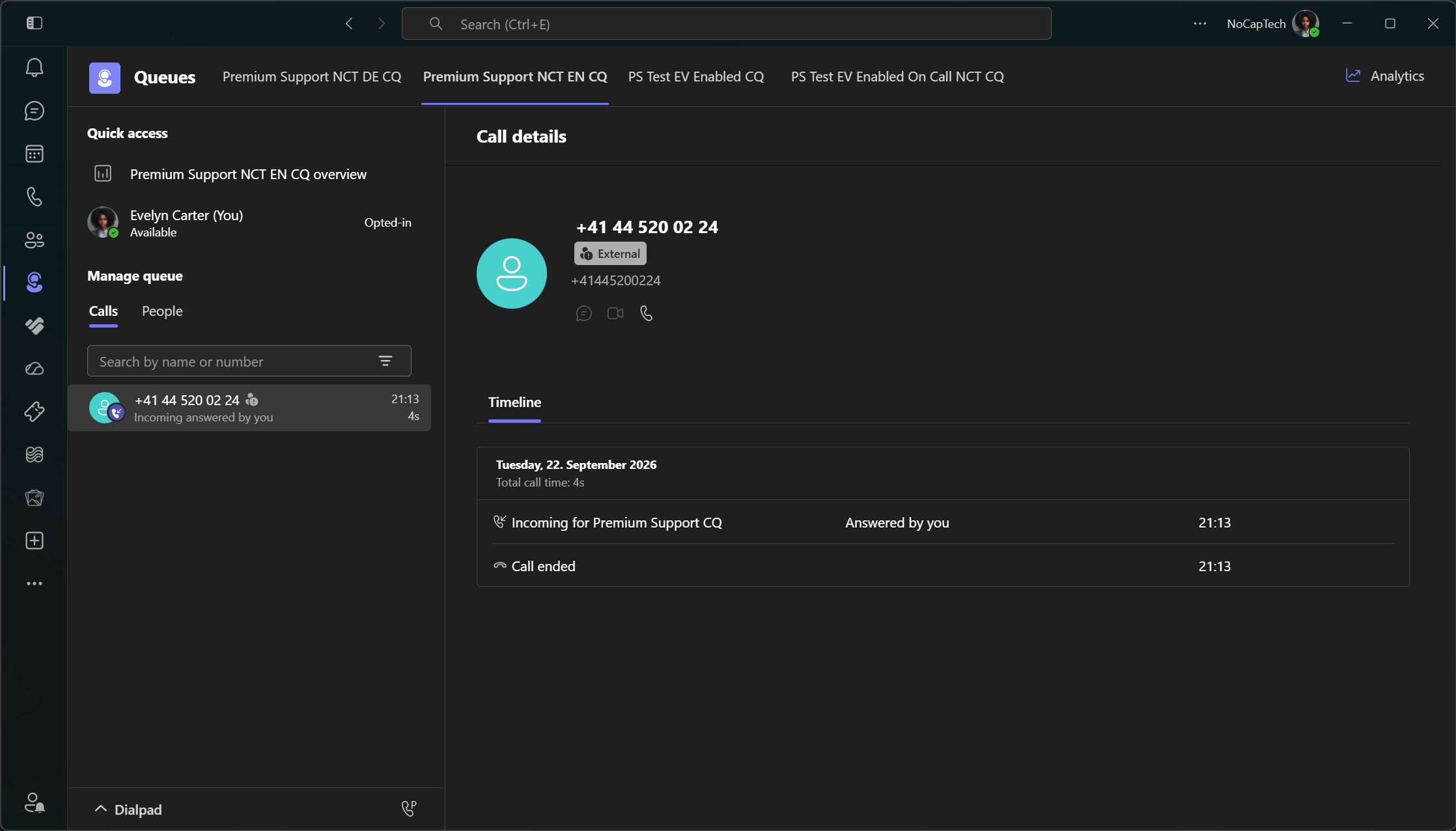
Call queues that are not set up for shared call history will still display Calls as tab title and display the tab on the left side. For some weird reason, the two tabs swap positions when shared call history is enabled. What’s even weirder is that one of my queues changed from Calls to Shared calls but kept the tab on the left.
Now let’s get to the interesting part. The configuration.
Set up Shared Call History for Call Queues.
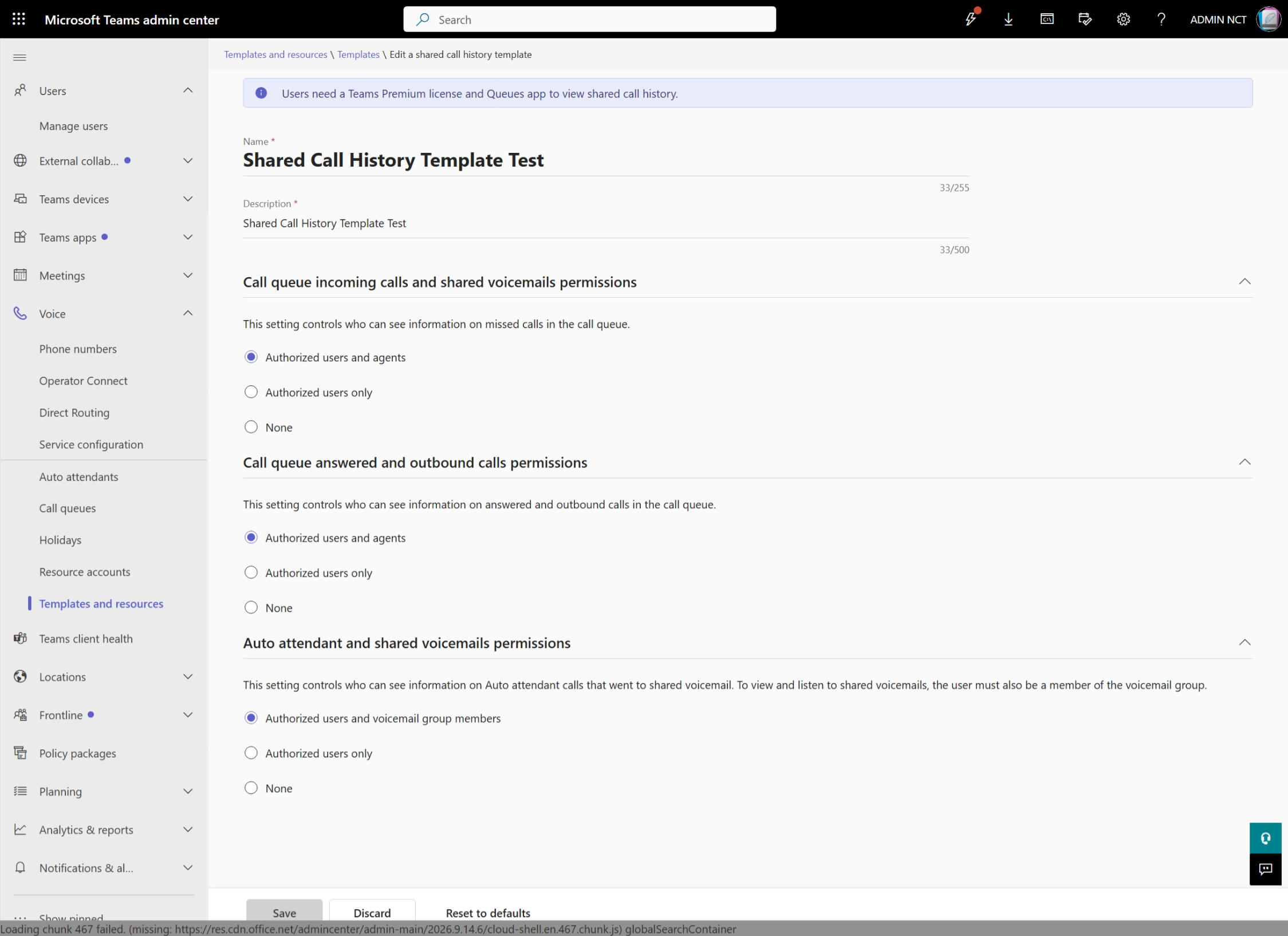
You’ll first need to create a shared call history template in Teams Admin Center. You can decide if all agents with Teams Premium and thus access to the Queues app can see missed or answered calls or if only authorized users should see them. In my case, I chose that agents (that term feels weird now…) that aren’t authorized users can see everything.
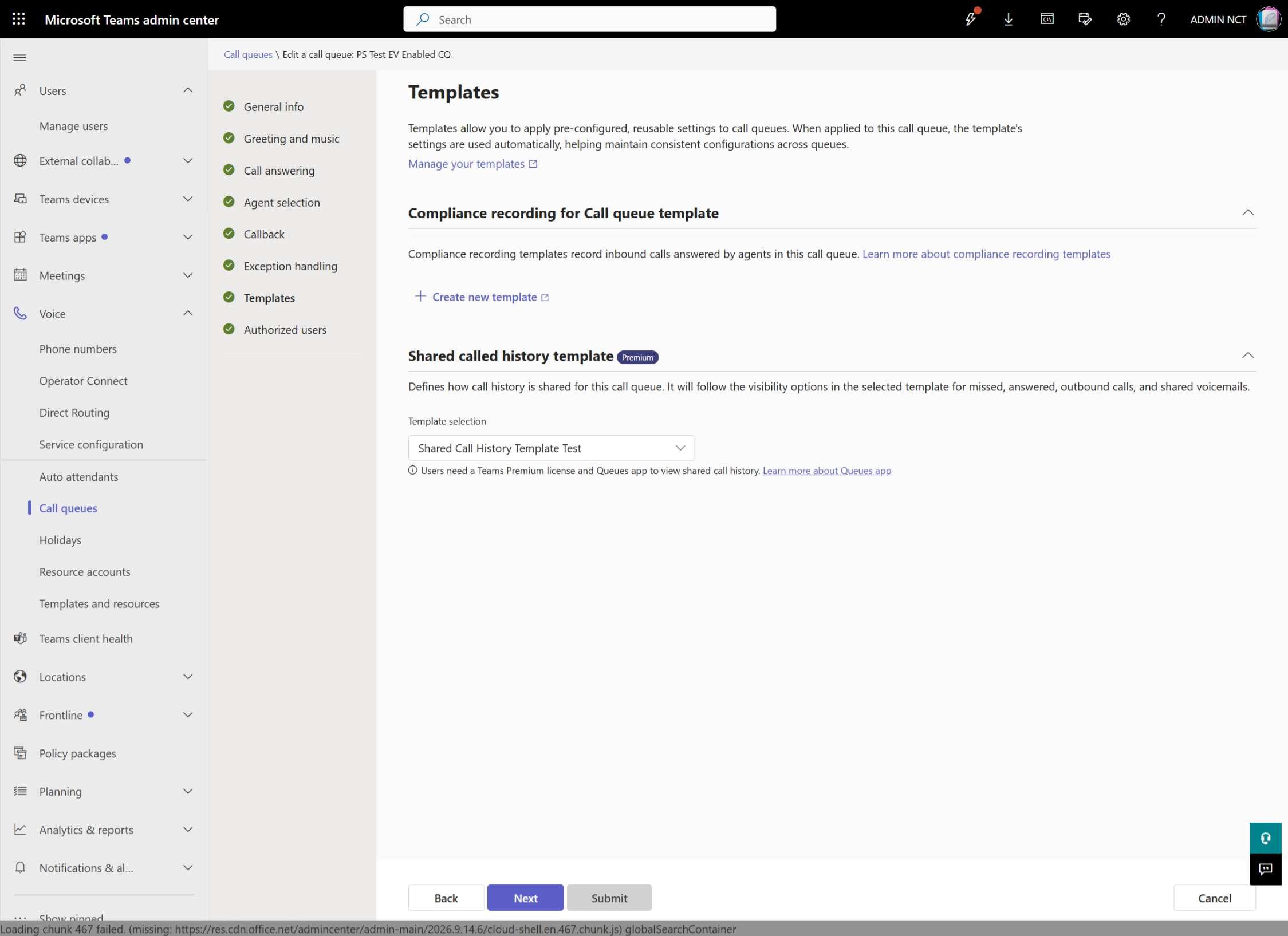
Next, you’ll need to assign the created template to a call queue and save the changes.
It may take some time until the Queues app reflects the changes and replaces the Calls tab with Shared calls. Only calls received after the template has been assigned to the queue will be shown in shared call history. If you remove the template from the queue again, the tab will revert to Calls.
After removing the template, I added it back and the previous call history entries were restored. However, calls that were missed when no template is assigned will not be visible. I placed a test call at 21:50 while shared call history was disabled and that call is not visible anywhere.
License Details
The Premium License is only needed to view the shared call history in Teams. It doesn’t look like it’s required to configure it or for the backend to do its thing. After all, you could also choose None for each of the permissions in a template. More on that later.
How Does Shared Call History Work?
Let’s take a look under the hood, shall we?
When you assign a shared call history template for a call queue, two special chats are created. One is for answered and the other one for missed calls.
The chatId looks something like this:
| |
Who would have thunk it but the cryptic looking part is just a Base64 encoded string that includes the call queue’s identity. This is the same Id you can get either from PowerShell or copy from the URL in TAC.
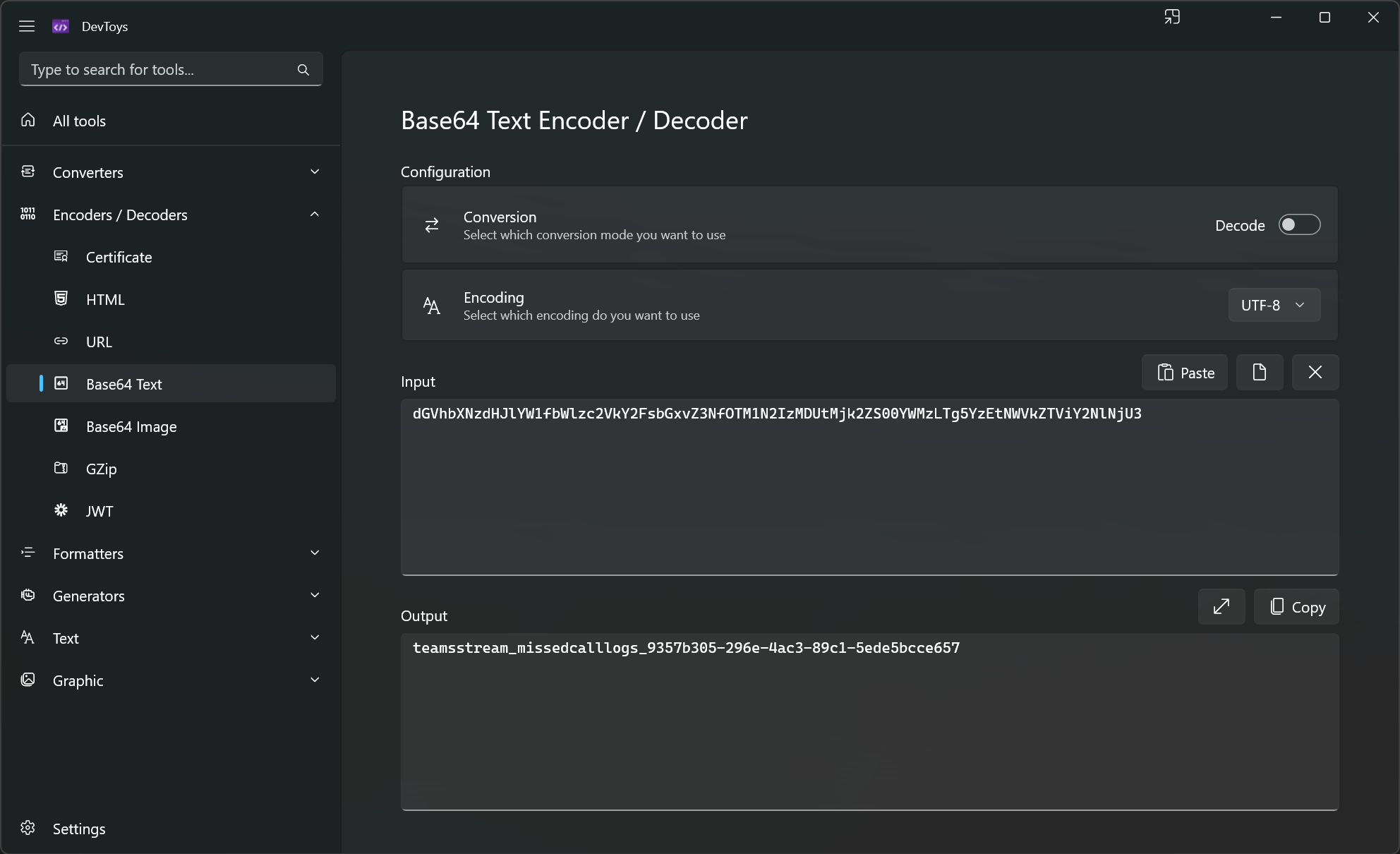
That means that we can quite easily reconstruct a chatId by simply knowing a queue’s identity.
| |
To get the chatId of the answered call logs, we simply replace missed with answered in the example code above.
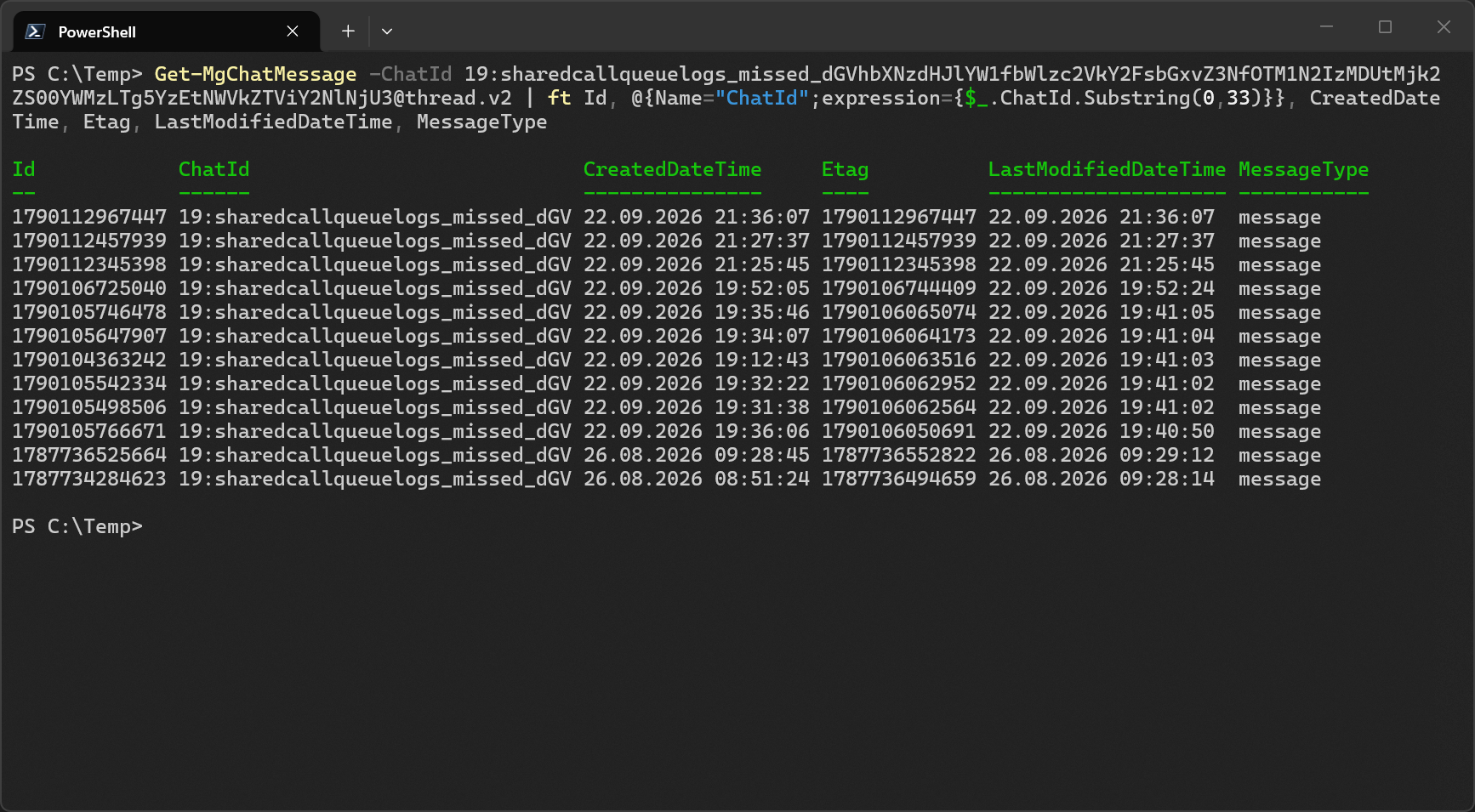
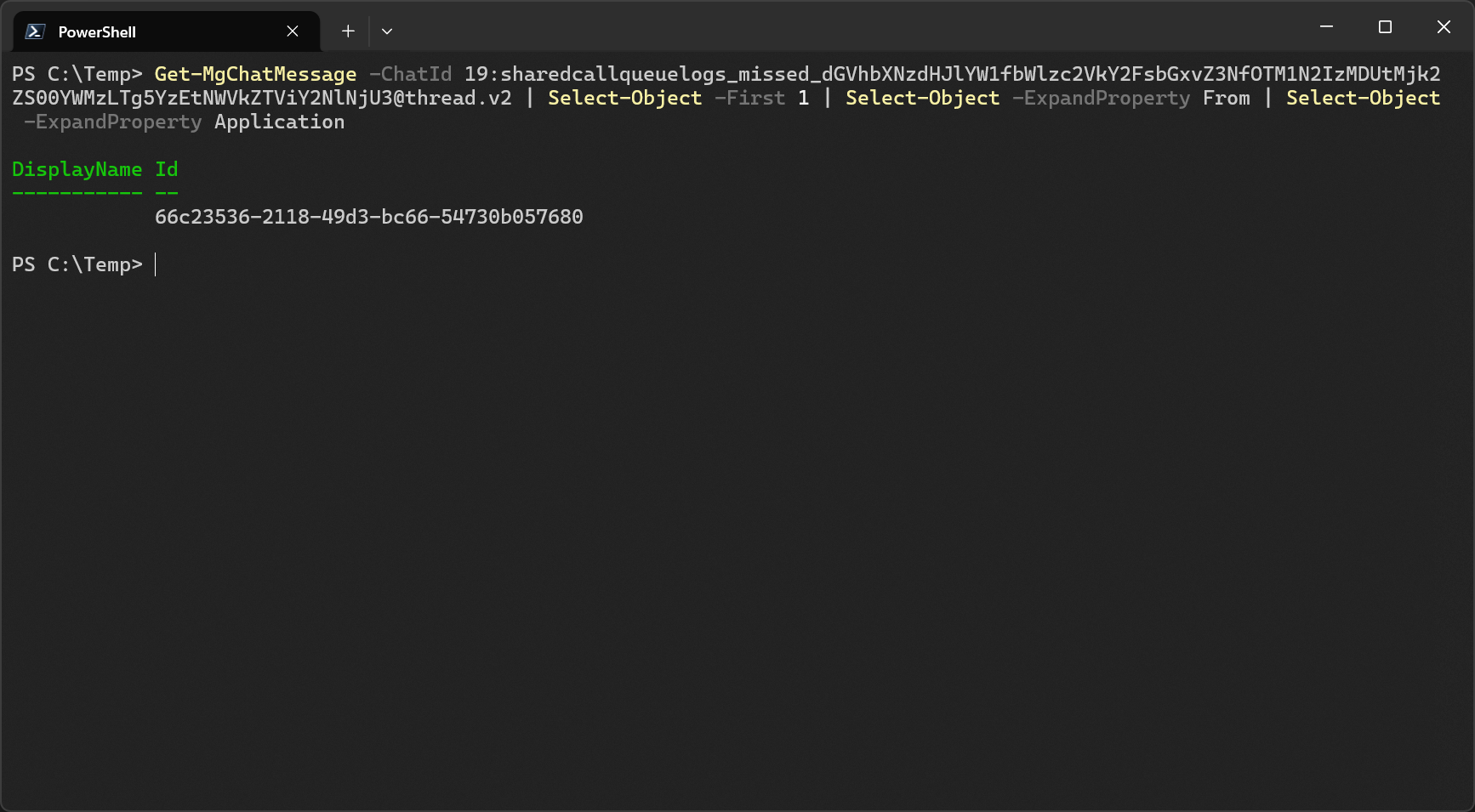
Now we can use an Entra app/service principal that has at least the application permission ChatMessage.Read.All and run Get-MgChatMessage -ChatId {ChatId}.
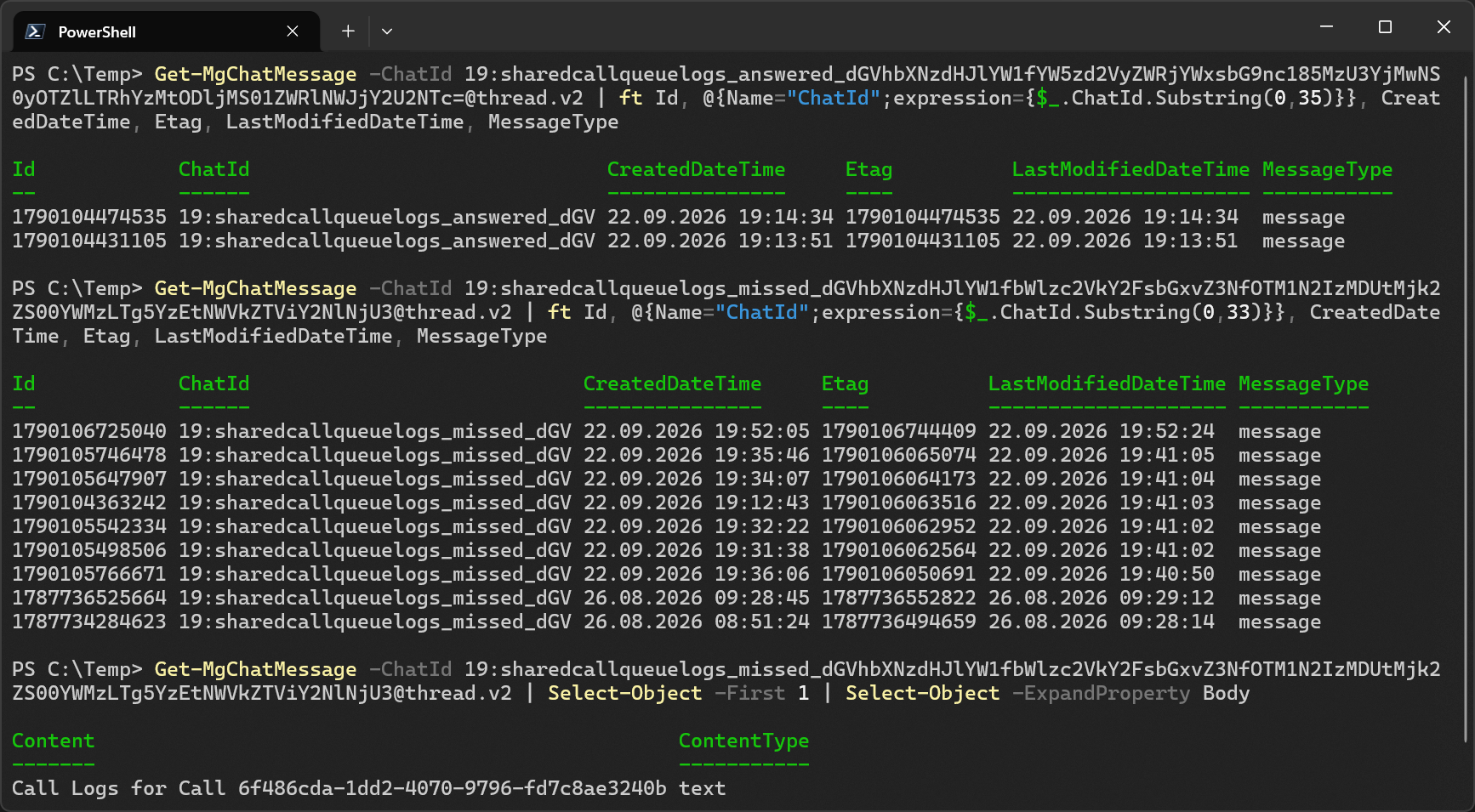
Note: ChatId is truncated in the output.
This will return a message for each call that was logged as either missed or answered. But sadly, Graph doesn’t return much data here. All we can get is a callId in the message body but that doesn’t help us much yet since it will take a couple of minutes until that is available in the callRecord Graph endpoint.
Good to Know
Graph Edge Cases
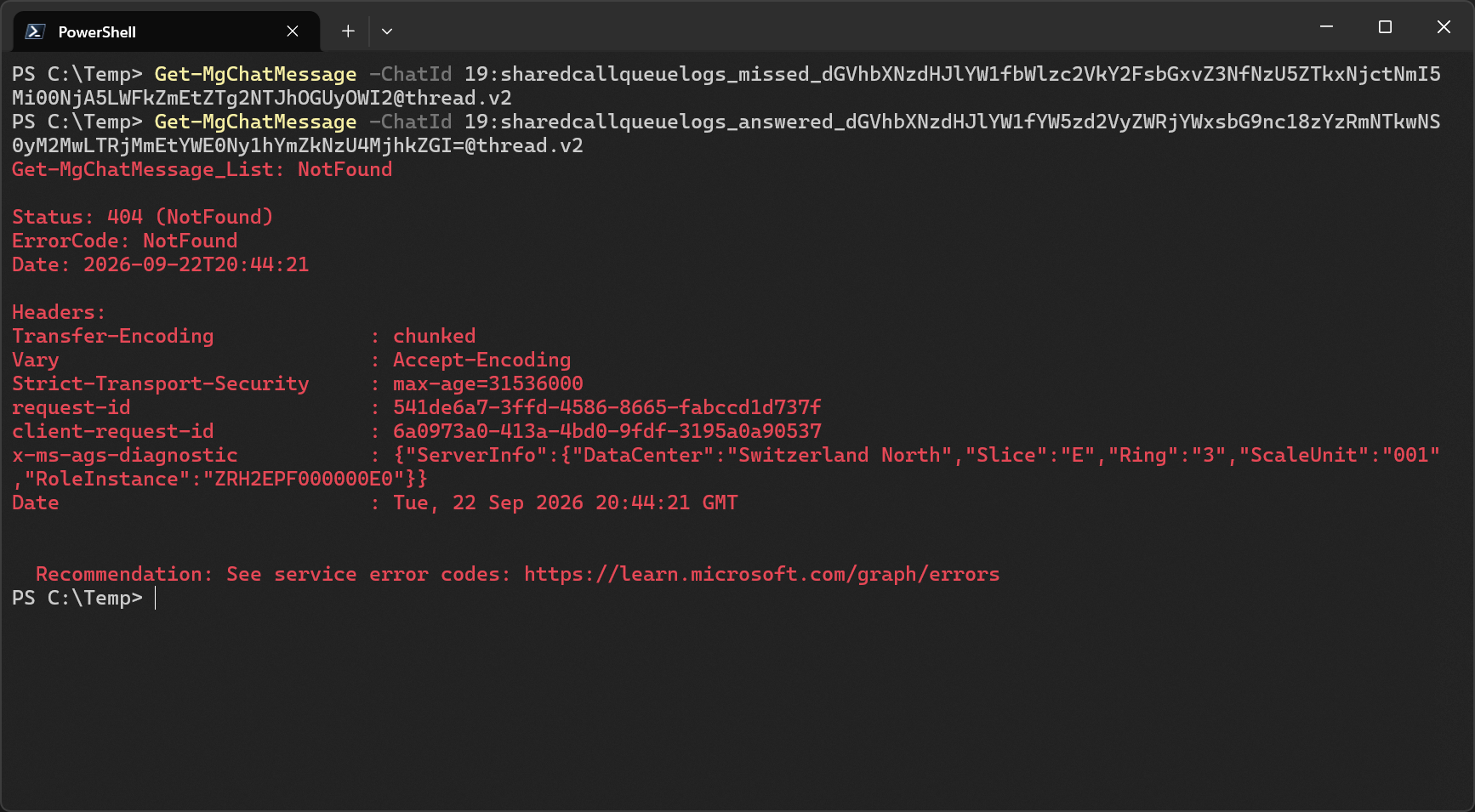
Getting the chat itself via Get-MgChat failes, even if the app has the Chat.Read.All permission.
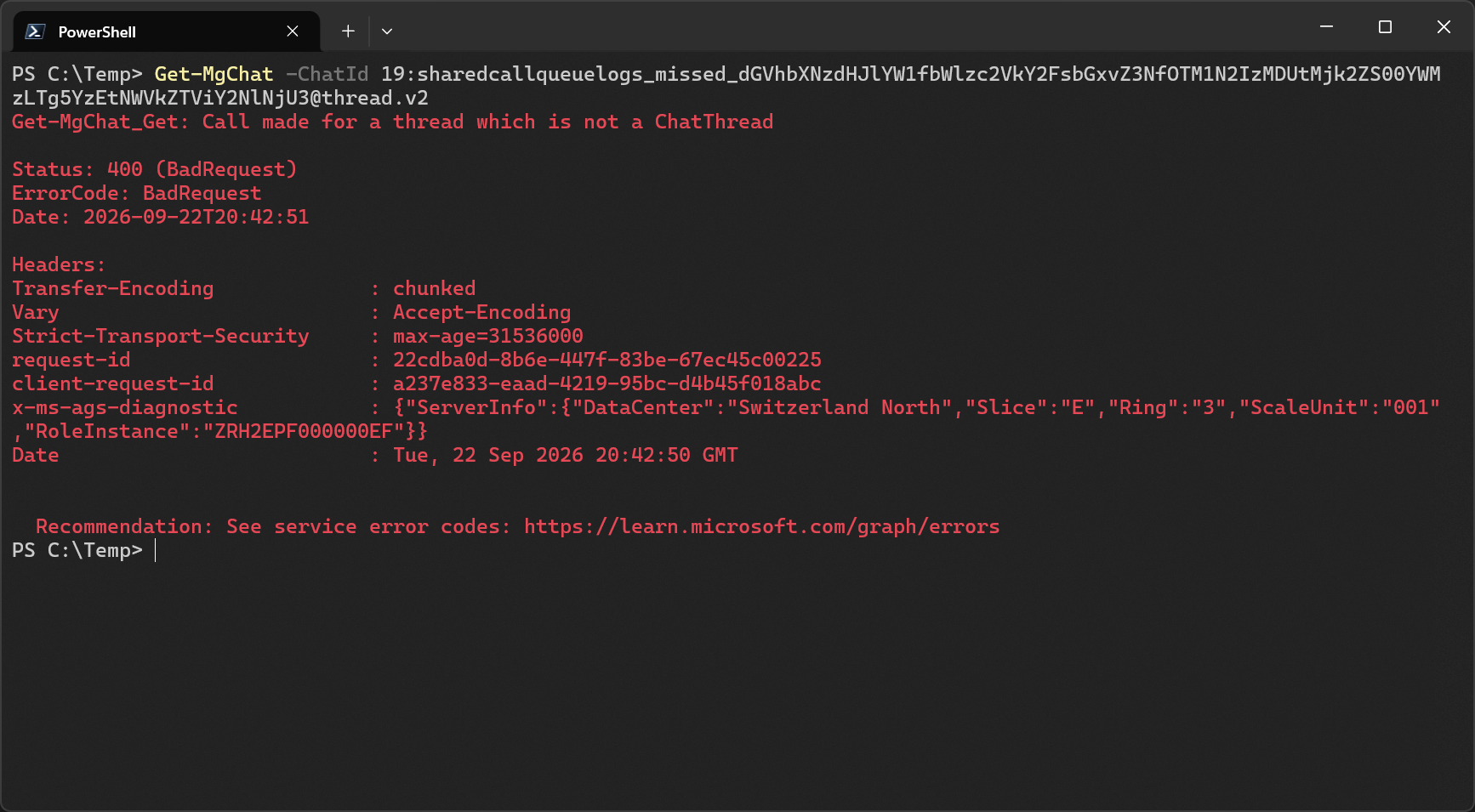
Getting a chat of a call queue that has a template assigned but never received any calls works but returns an empty result. And running the command against a generated chatId for a call queue that never had a template assigned fails. That’s why I said earlier the call log chats are provisioned when you assign a template to a queue for the first time.
Templates with No Data Access
If a template is set to None for incoming and outgoing calls, the calls are still logged in the special call log chats but don’t appear in the Queues app. In fact, the Queues app reverts to the standard Calls tab even though the template is still assigned to the queue.
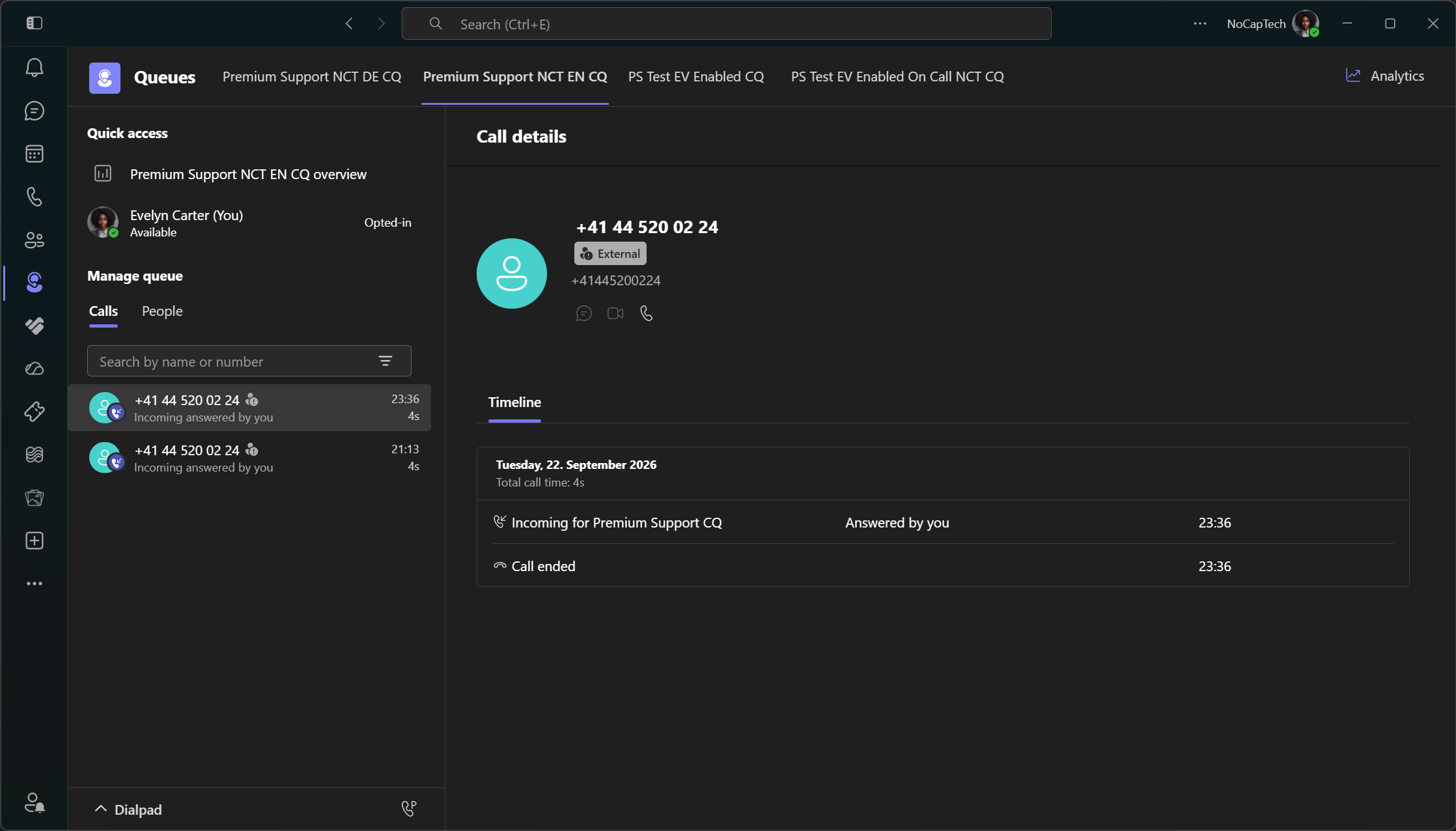
I’ve also found that editing a template only does not immediately apply changes. When the template is removed from the queue and then added again with saving the queue after each step, the changes were applied almost instantly in my testing.
Accessing Call Log Chats in Teams
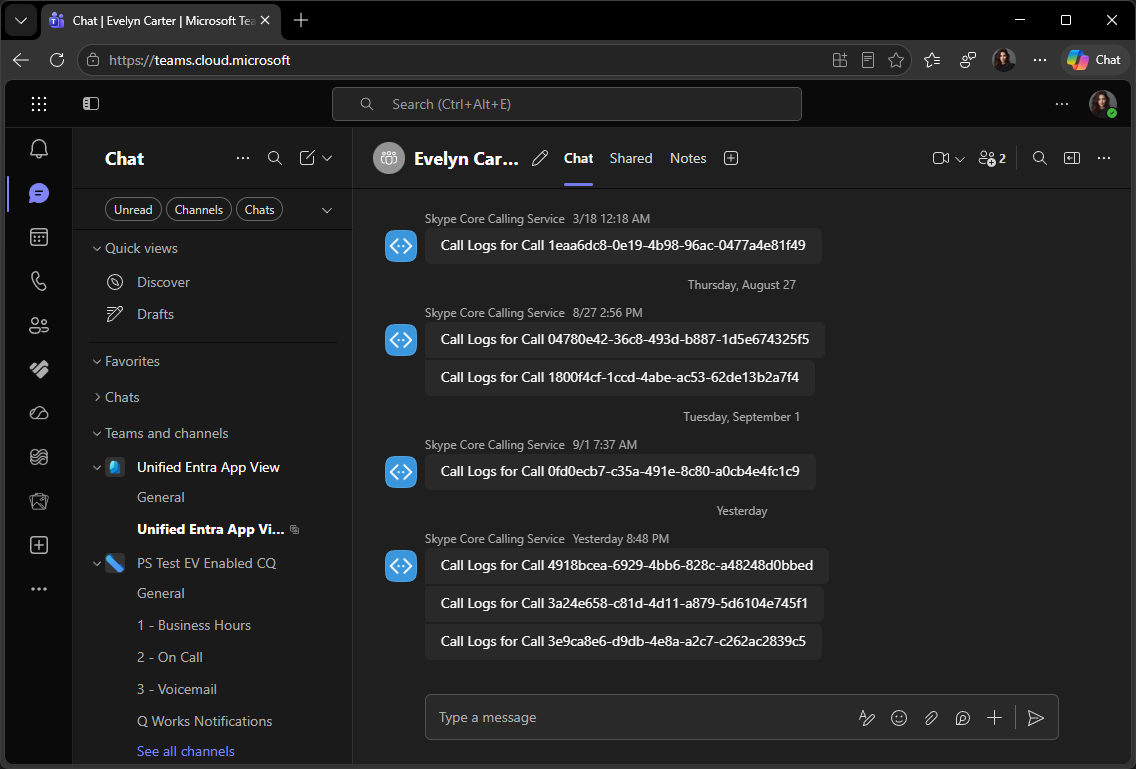
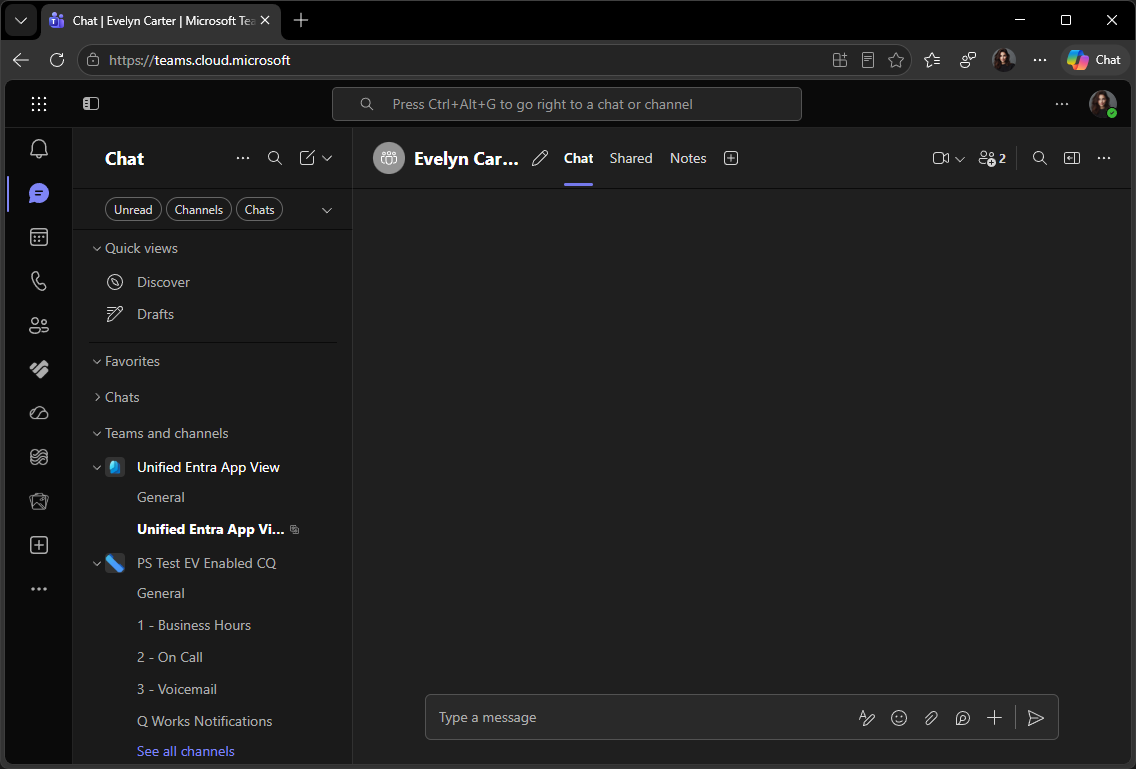
I was even able to access a call log chat in Teams by copying a link to another chat and replacing its chatId. Messages are sent by a bot called Skype Core Calling Service and the members of the chat list the users that are agents in the call queue and have access to the shared call history template. The bot is a Microsoft 1st-Party application that can also be found in a call log chat message’s From property.
| |
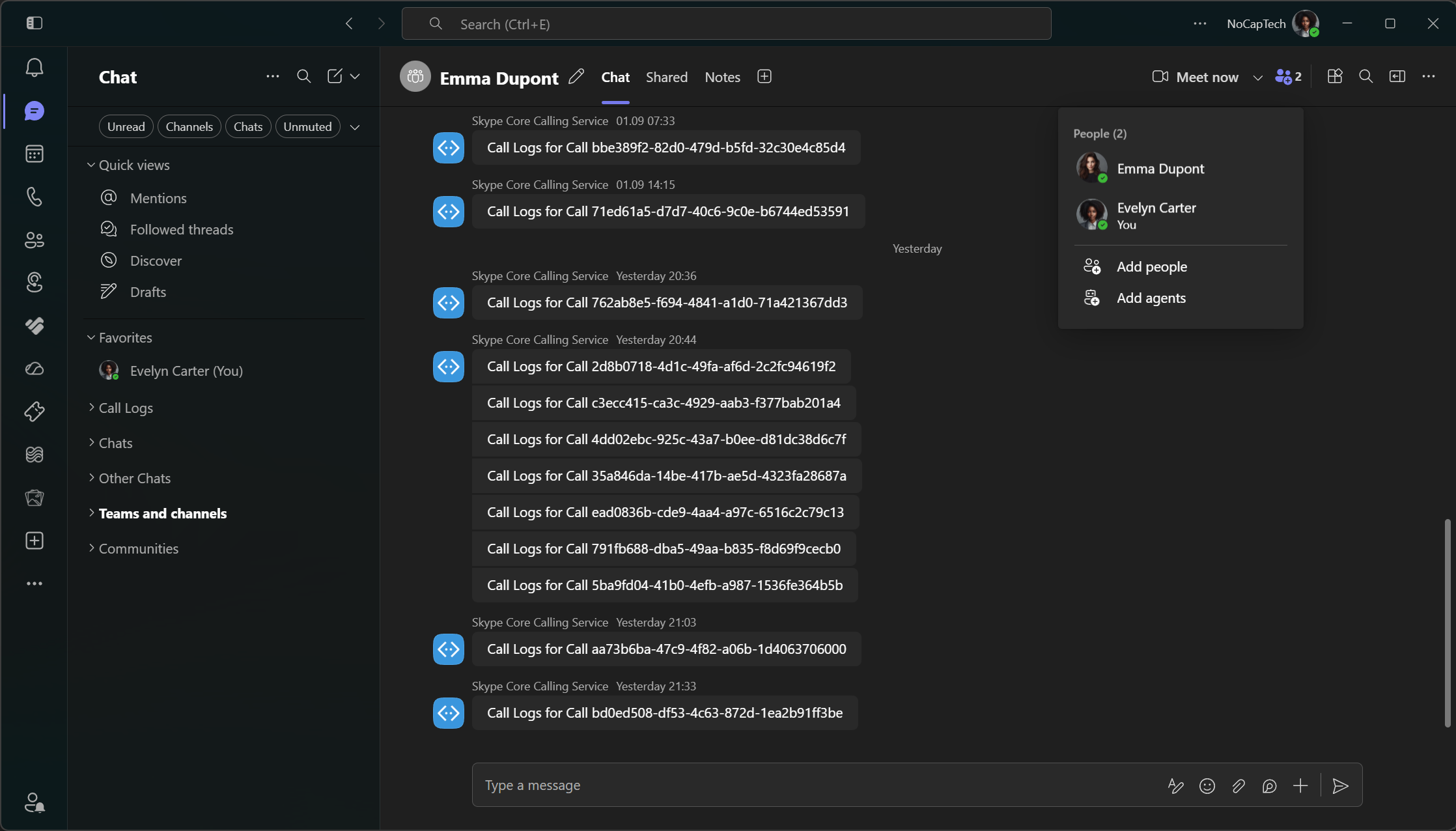
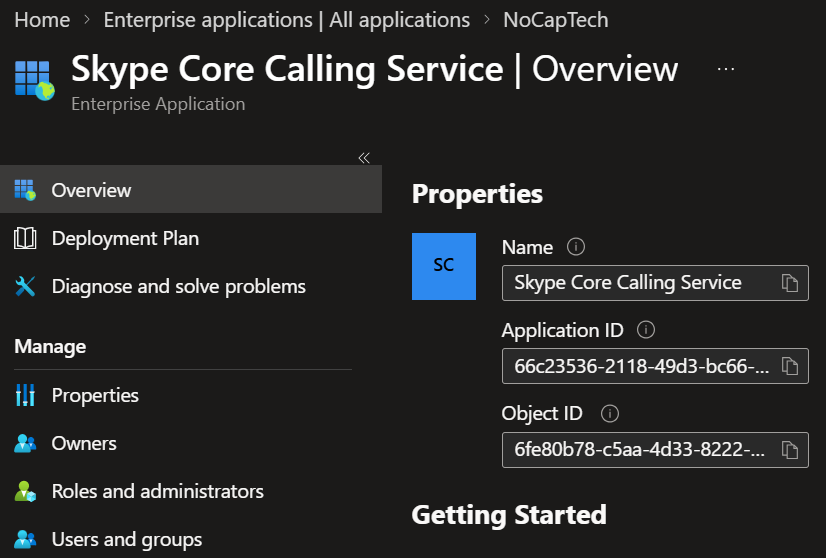
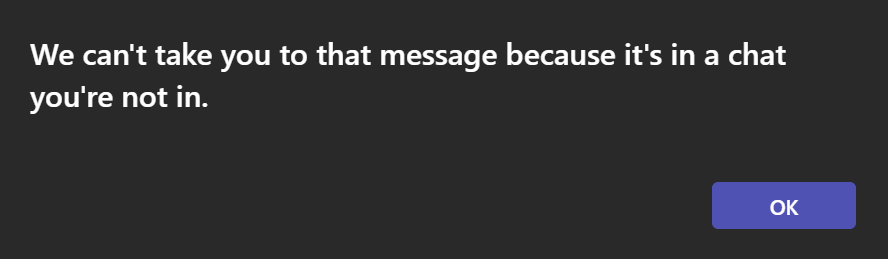
When a user doesn’t have permission to view shared call history through the permissions configured in a template, trying to access that queue’s call log chat results in the error message below.
Both the answered and the missed call log chats can be accessed via deep links and there is no license enforcement. Even users without Premium can access these chats as long as they’re part of the associated call queue. Even an empty chat of a queue that has a template assigned but never received any calls can be opened in Teams via its deep link.
Where to Go from Here?
Although I would have liked the chat messages to include more call related detail, especially the caller number or who answered the call, this is better than having nothing at all.
It does look like Microsoft is only enforcing the license at the client level through the availability of the queues app. At the time of writing, these chats can be queried via Graph with app-only authentication which means that it’s technically possible to build your own solution to notify call queue agents about missed calls.
Waiting for the callId found in the message body to be available in the call records endpoint will still have the noticeable delay of ~15 minutes, just like my original custom solution Q-Works Lite had. But it doesn’t require a monitoring user that’s always signed into the queue anymore. I can imagine that it’s also much more complicated to work from the direction of the call record towards which agents should be notified.
Detecting new missed calls from the call history chats seems like a much easier option here. All one would need to do is to store the last known message per chat and fetch chat messages of shared call history chats periodically to then compare the current newest message against the last known message to determine if there were any new missed calls. Shared call history enabled call queues can easily be filtered with PowerShell and from there it’s possible to reconstruct the chatId and also see which agents should be notified.
In my imagination, the best approach would be a hybrid solution. Use Graph and PowerShell to detect new missed calls and notify through a Teams feed notification either by a custom app or via Power Automate. The notification should include the call queue name so agents know when and where to look for detailed information about missed calls in the Queues app.
Proof of Concept Script
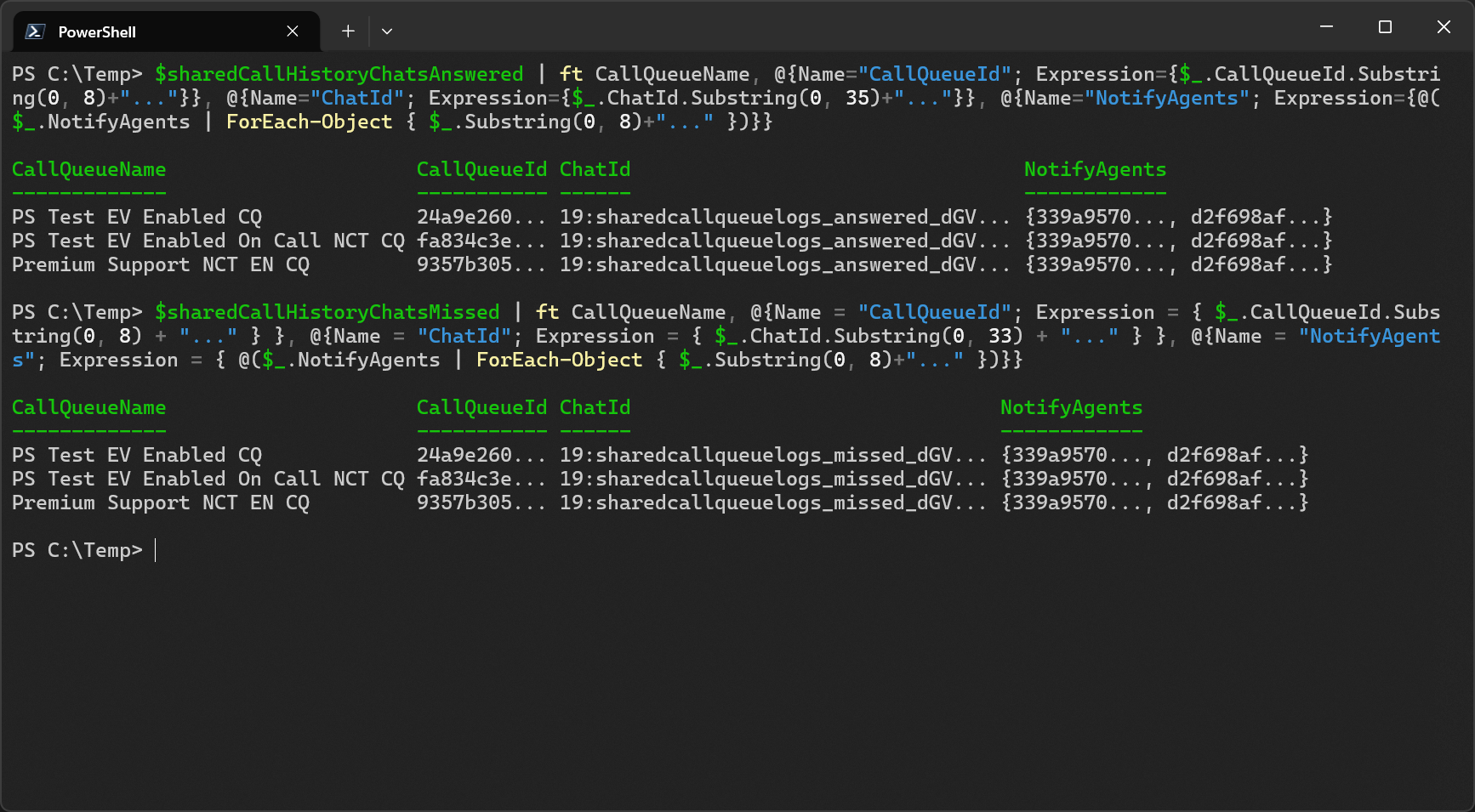
I’ve created a quick PoC script that reads all call queues from a tenant, finds call queues enabled for shared call history and outputs all missed and answered chats IDs as well as all currently opted in agents.
| |
The two objects that the script spits out include everything one would need to then loop over the missed call chats to check if there are any new missed calls.
Disclaimer & Summary
None of this is supported or documented. This blog only covers the discovery of missed shared calls and right now, I’m not planning to build a full-blown notifying solution for missed shared calls. But I hope that this blog post was interesting to you nonetheless.
Whether or not Microsoft will block application access to the call log chats or provides an updated experience that includes proactive notifications in the future remains to be seen. Until then, an unsupported, self-made solution leveraging the call log chats to notify call queue agents about missed call queue calls unfortunately remains the most viable option.