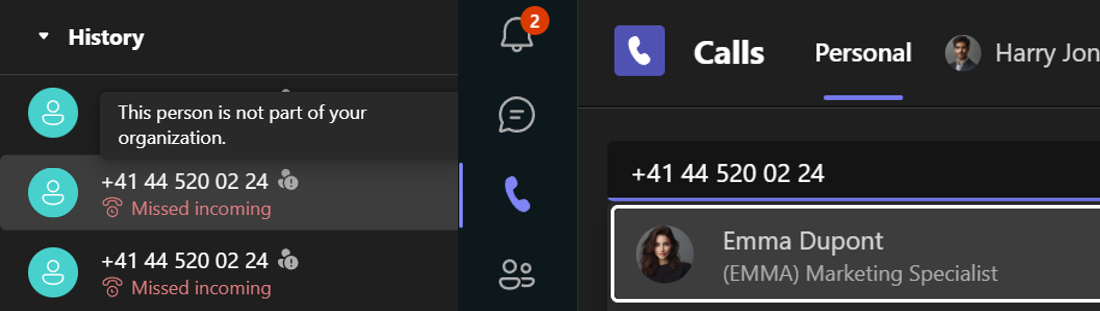
The Teams incoming call toast evolved quite a bit over time. The most recent and most meaningful change is arguably the External badge it now displays when you get an external call on Teams. But before we dive in, let’s take a look at how it changed over time.
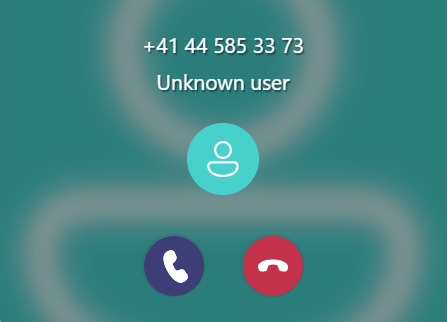
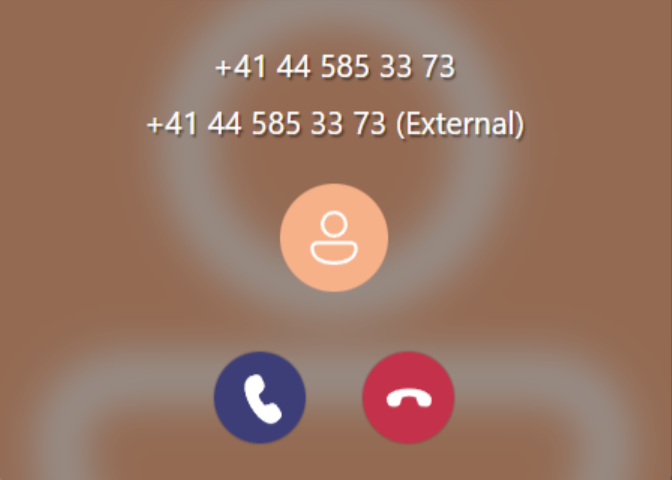
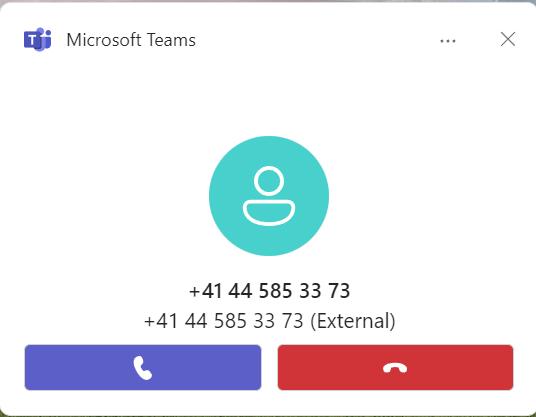
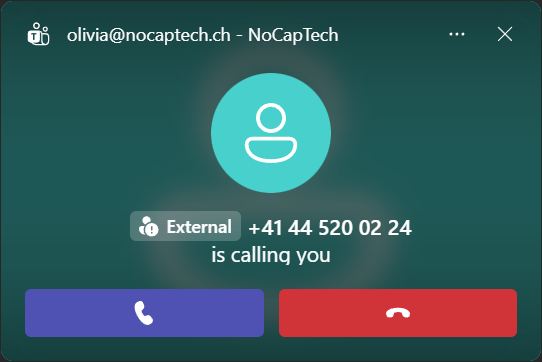
As you can see, a very long time ago, apart from the toast saying Unkown user there was no source indication on the call toast what so ever. Microsoft then started to append (External) as a string to the number or the caller’s name (if it was already in your saved contacts). While the intentions were good, this method had one major flaw: Threat actors trying to impersonate help desk staff and the like got very creative and started to add a lot of trailing whitespace and or invisible line breaks to their display names. That caused Teams to omit the (External) suffix because the toast didn’t offer enough space and hackers were able to conceal that they were calling from an external number.
Luckily, Microsoft fixed this by adding a proper External badge with an icon. I could have sworn that the badge was first displayed after the display name as well but I couldn’t find any old screenshots of that claim. Anyway, placing it before the display name is definitely the right choice here.
The external badge you encounter on incoming call toasts are not the only type of badge or the only place you might encounter them. Microsoft calls them Trust Indicators and actually has a has a great Learn article about them: Representation of users outside your organization.
Further more, they also have a good article on Microsoft Support about protecting yourself against impersonation attempts in Teams calling.
I’ve actually never seen the Scam suspected warning in a live call notification myself. I could be wrong, but as far as I know, Teams never displays a profile picture of external/federated users unless they’re also a guest in your tenant or you’ve configured a trust relationship with another organization. Scammers will very likely call as external users (as the screenshot is showing) so the chances that the toast will also show a profile picture are quite small. I believe that this image may have been edited to include a profile picture for the simple reason that it looks better.
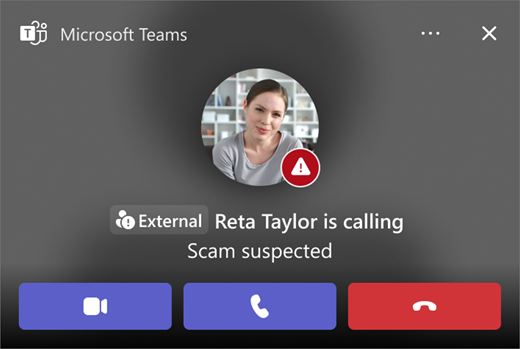
If you know how to reproduce the screenshot above (get a profile picture on an external Teams call), please do let me know…
When Do Incoming Call Toasts Show the External Badge?
There are a number of scenarios in which Teams will show the external badge.
External Phone Number
Not Saved in Contacts
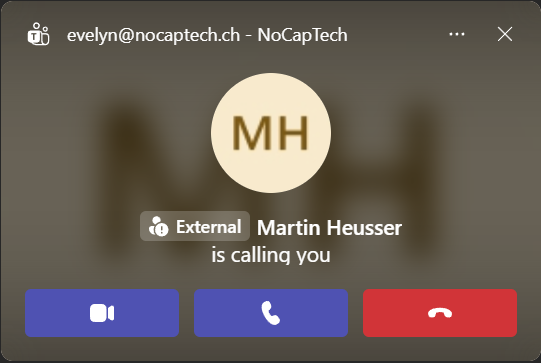
In this case, the external badge has an exclamation mark, indicating External-Unfamiliar.
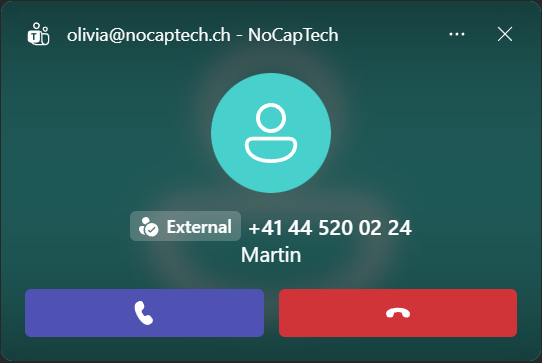
Saved in Contacts
In this case, the external badge has a check mark, indicating External-Familiar.
Entra ID Phone Number
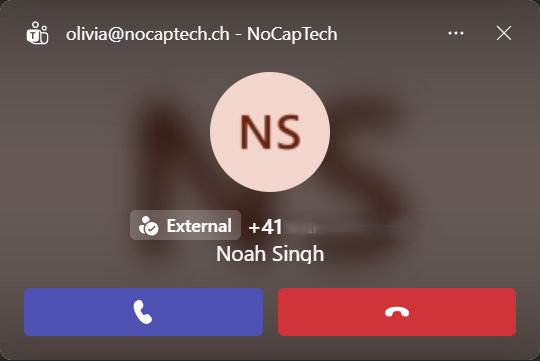
If the caller ID is set on one of your users in Entra ID as either business or mobile phone, it will also display the External-Familiar badge.
Teams Calls
Guest Account
When you get a call from a guest in your tenant, the Guest badge is shown.

External Account
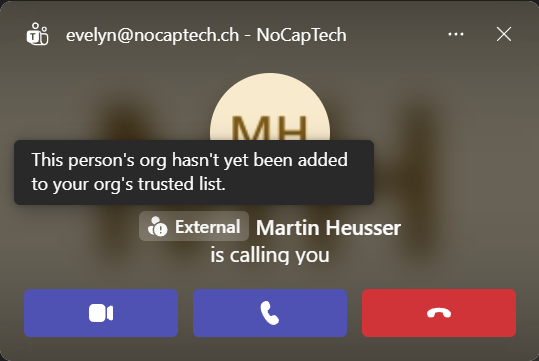
Calls from a federated account from orgs that haven’t been added to your org’s trusted list will still show as External-Unfamiliar even if you save an email address to your contacts.
Internal Account
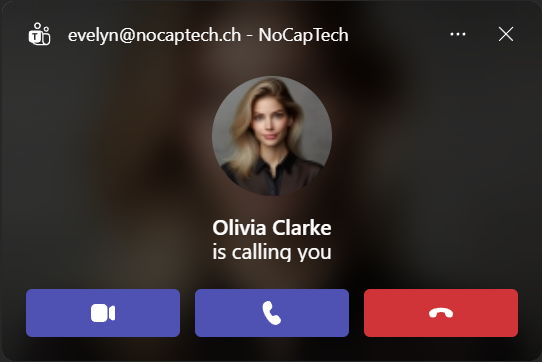
This one is pretty clear. But don’t rely on the profile picture alone. You might still only see initials instead of a profile picture when there person calling you hasn’t set a profile picture. But there is no badge shown for calls from internal users.
Teams Mobile Apps
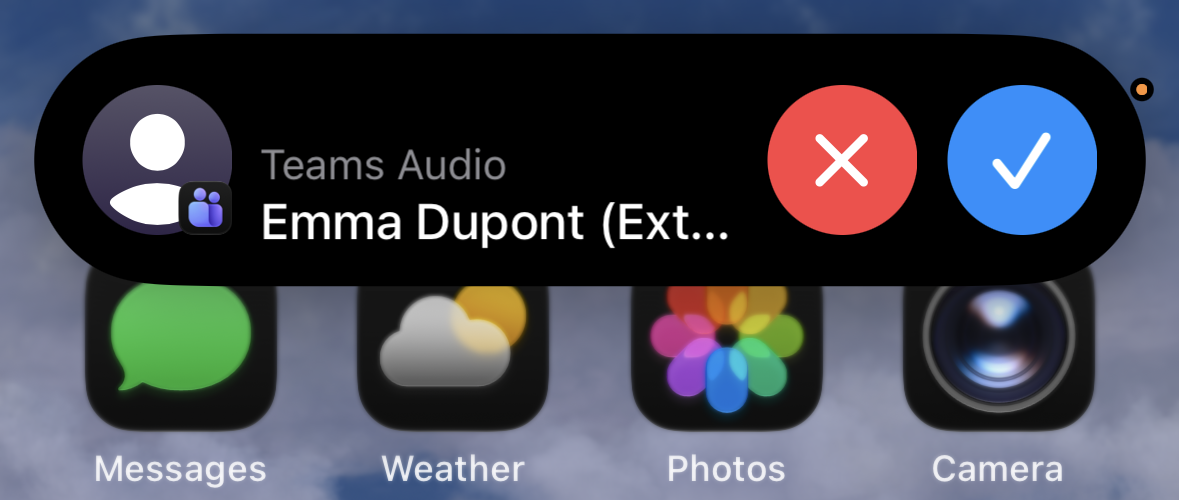
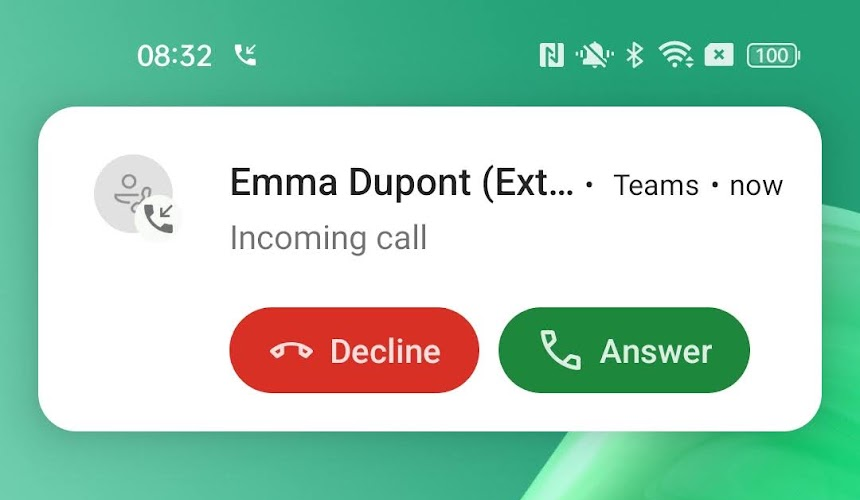
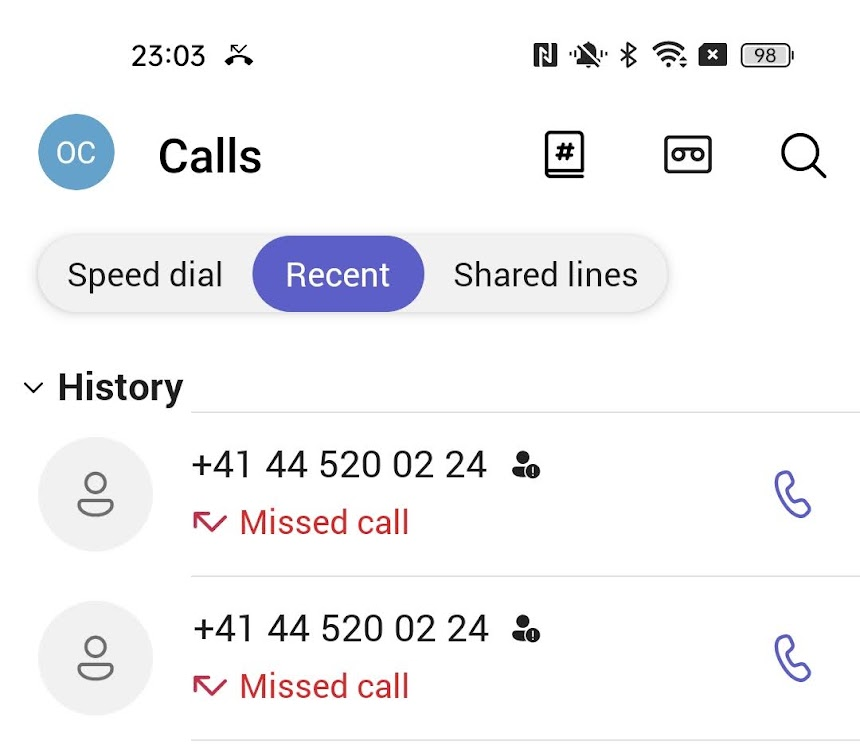
Unfortunately, iOS doesn’t support the External badge in call notifications. I suspect that this is due to limitations of CallKit. At least it adds the (External) suffix but the scroll text is so slow that most users will likely answer before they ever see it.
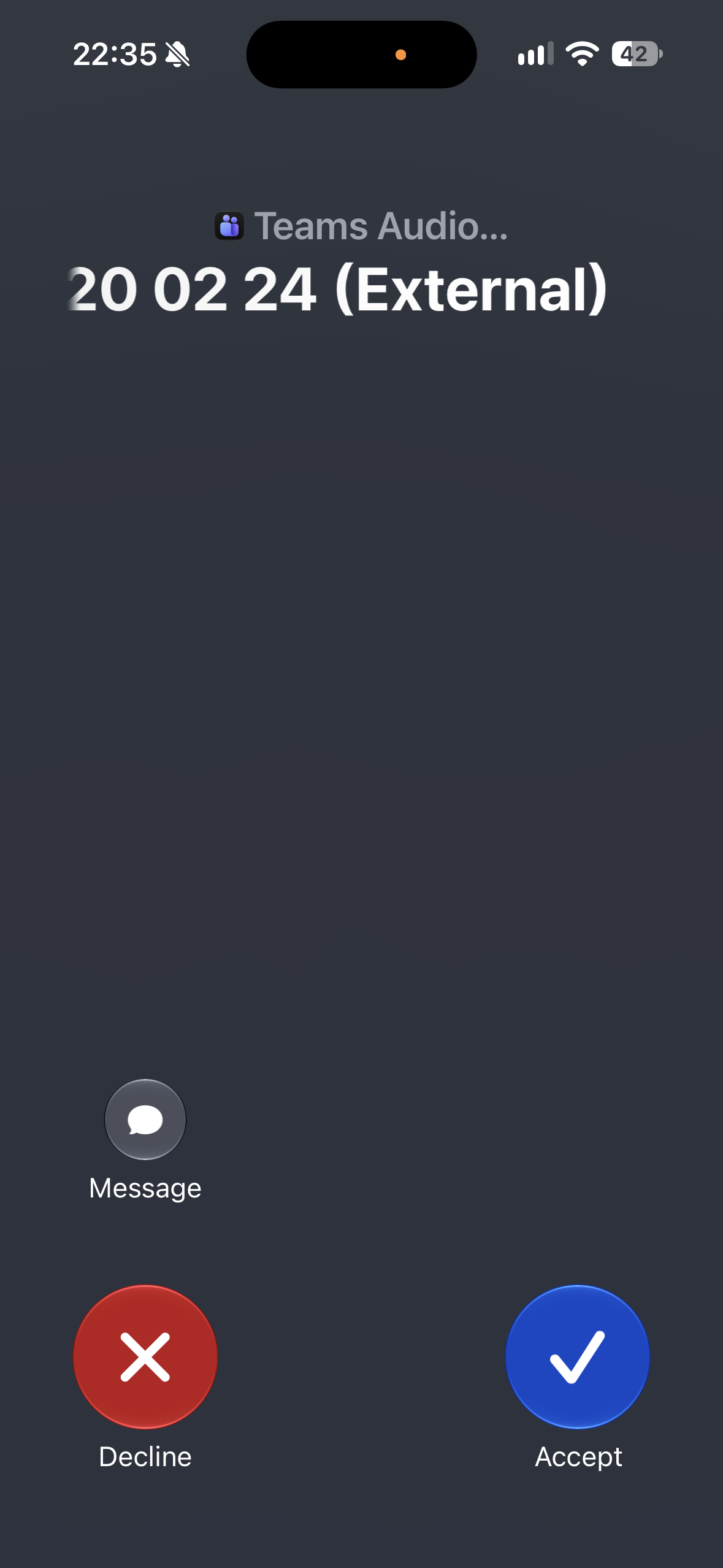
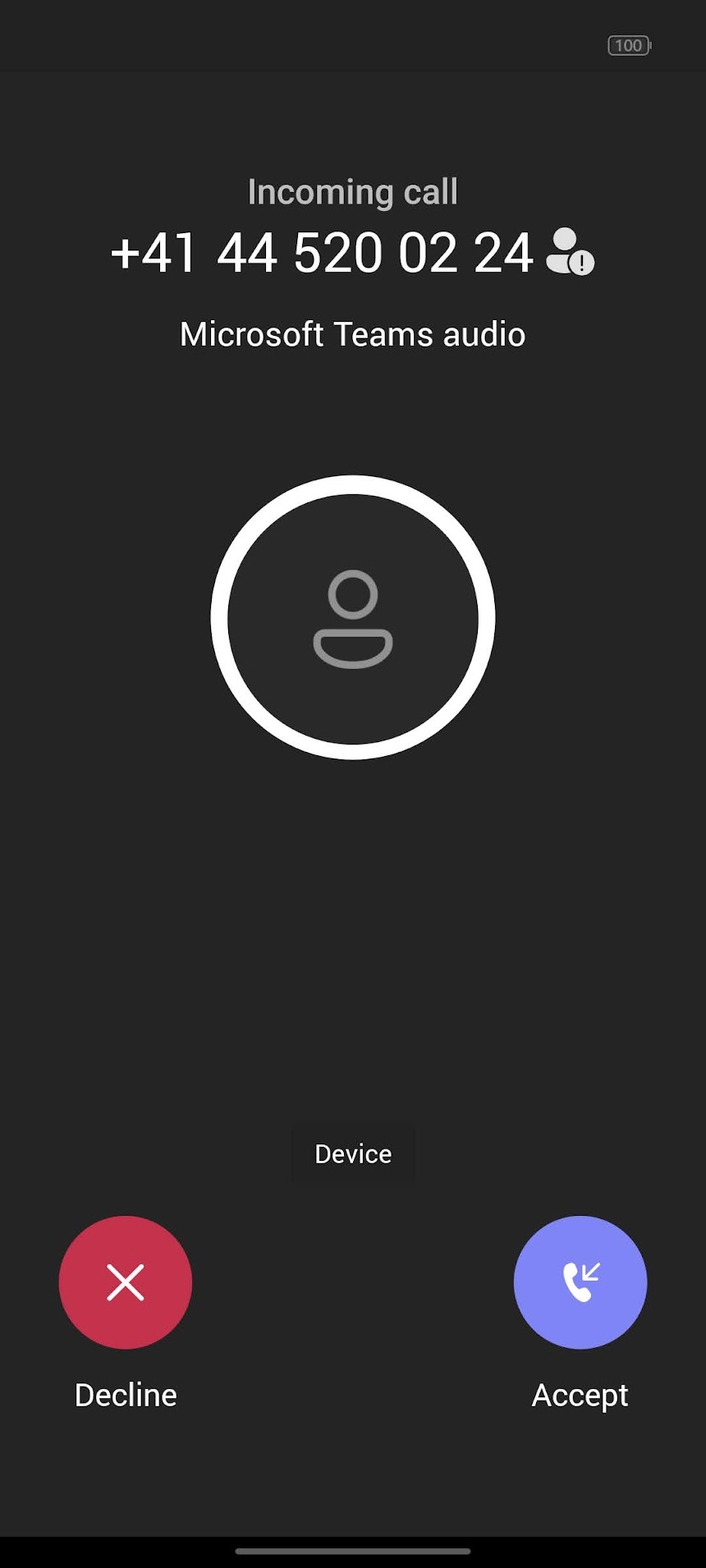
I only have an Oppo with ColorOS to test but in this case, both iOS and Android fail to display the (External) tag in banner notifications.
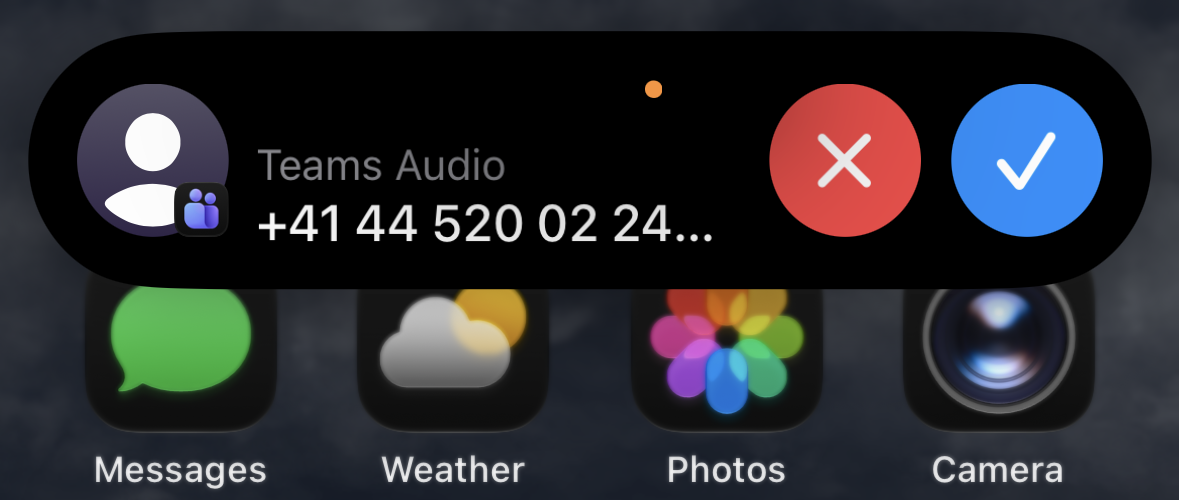
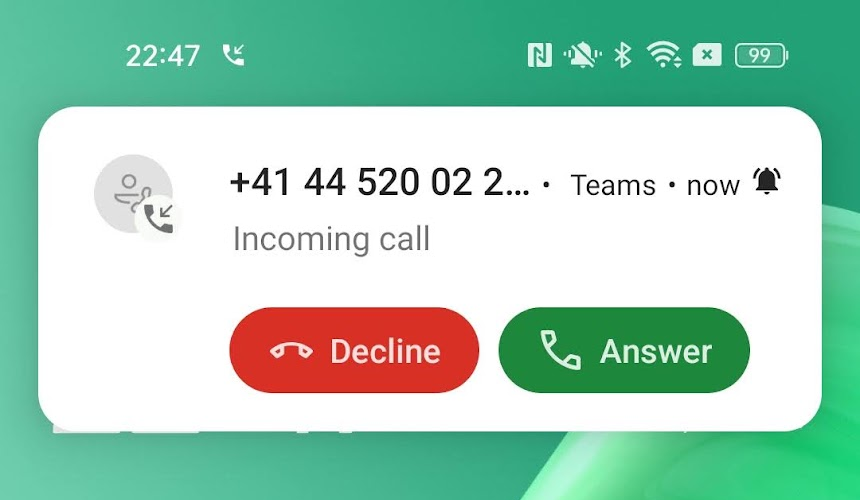
This is exactly the reason why Microsoft changed from the appended string to a proper badge on Desktop. It turns out that the (External) suffix is there, but it can’t be shown because there’s not enough horizontal space. Depending on number or name length of contacts, the (External) label might be partially visible.
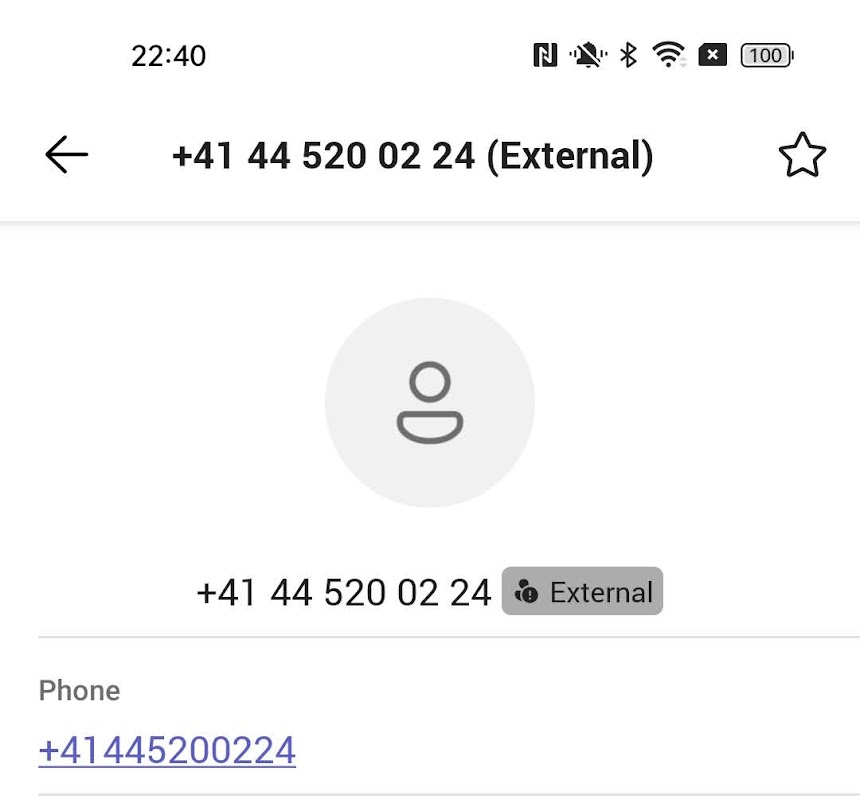
Although it’s very small, Teams on iOS does show the External icon in the Teams call history but it doesn’t show anything on a caller’s profile card. The iOS call history shows the (External) suffix.
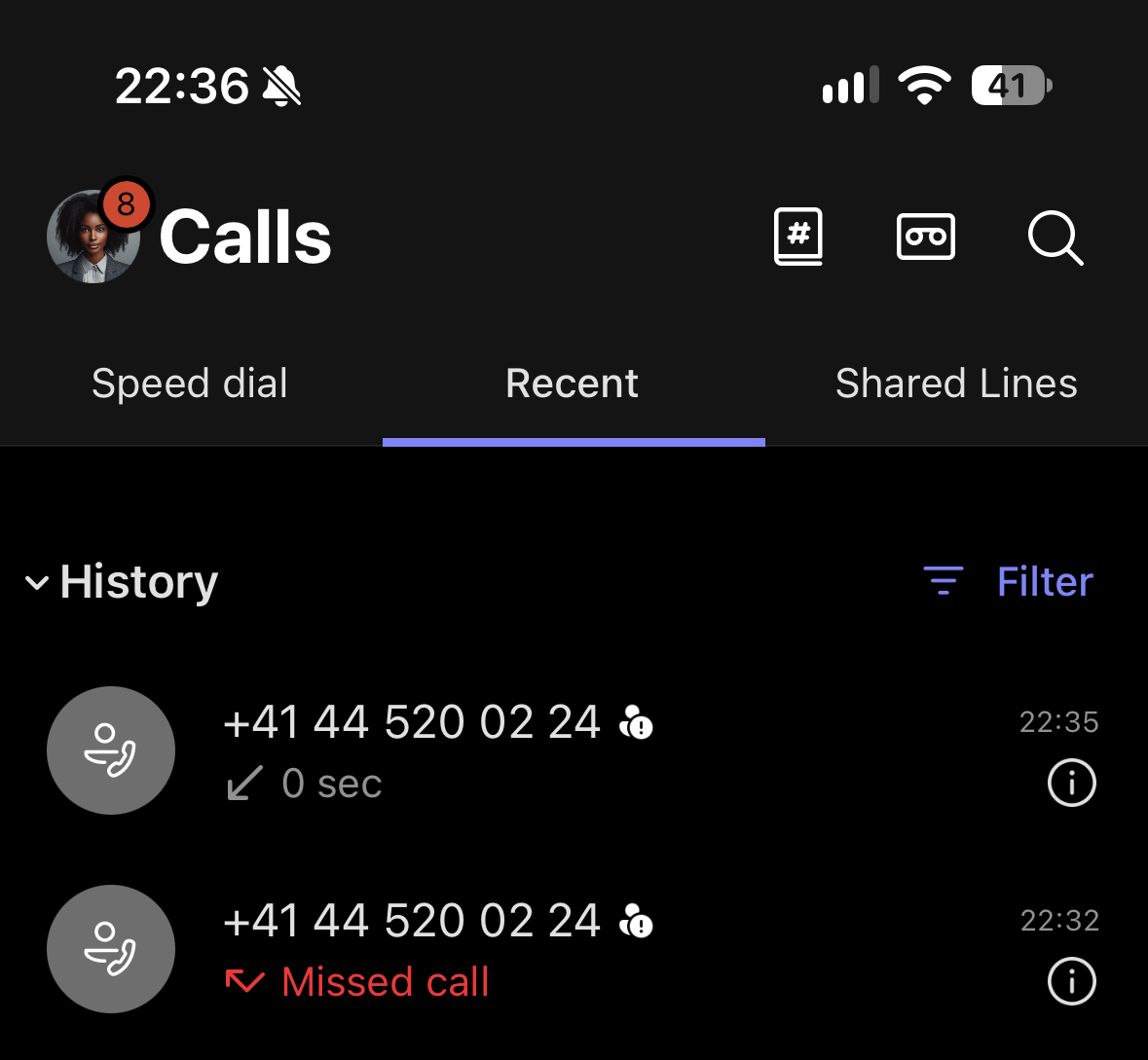
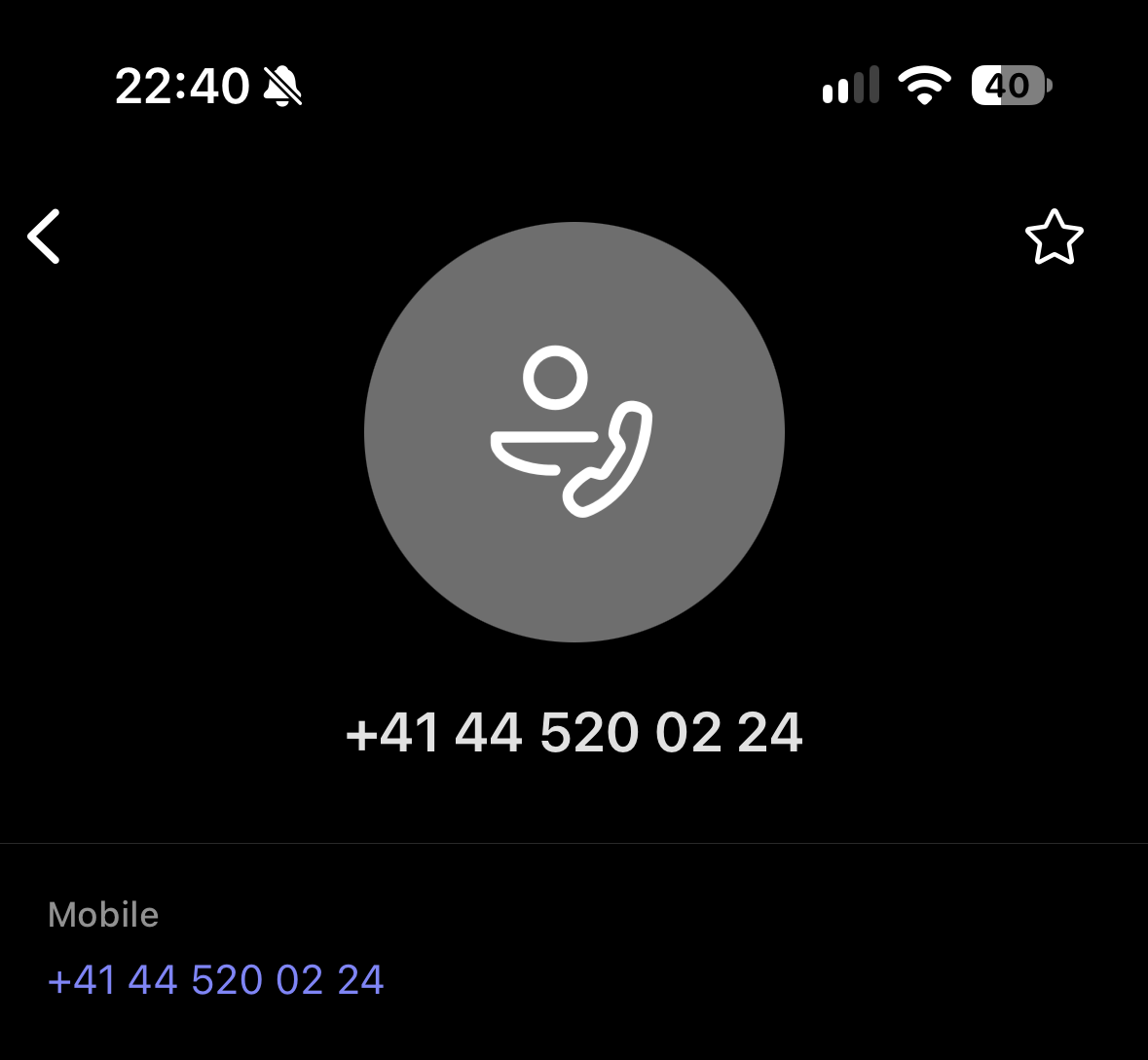
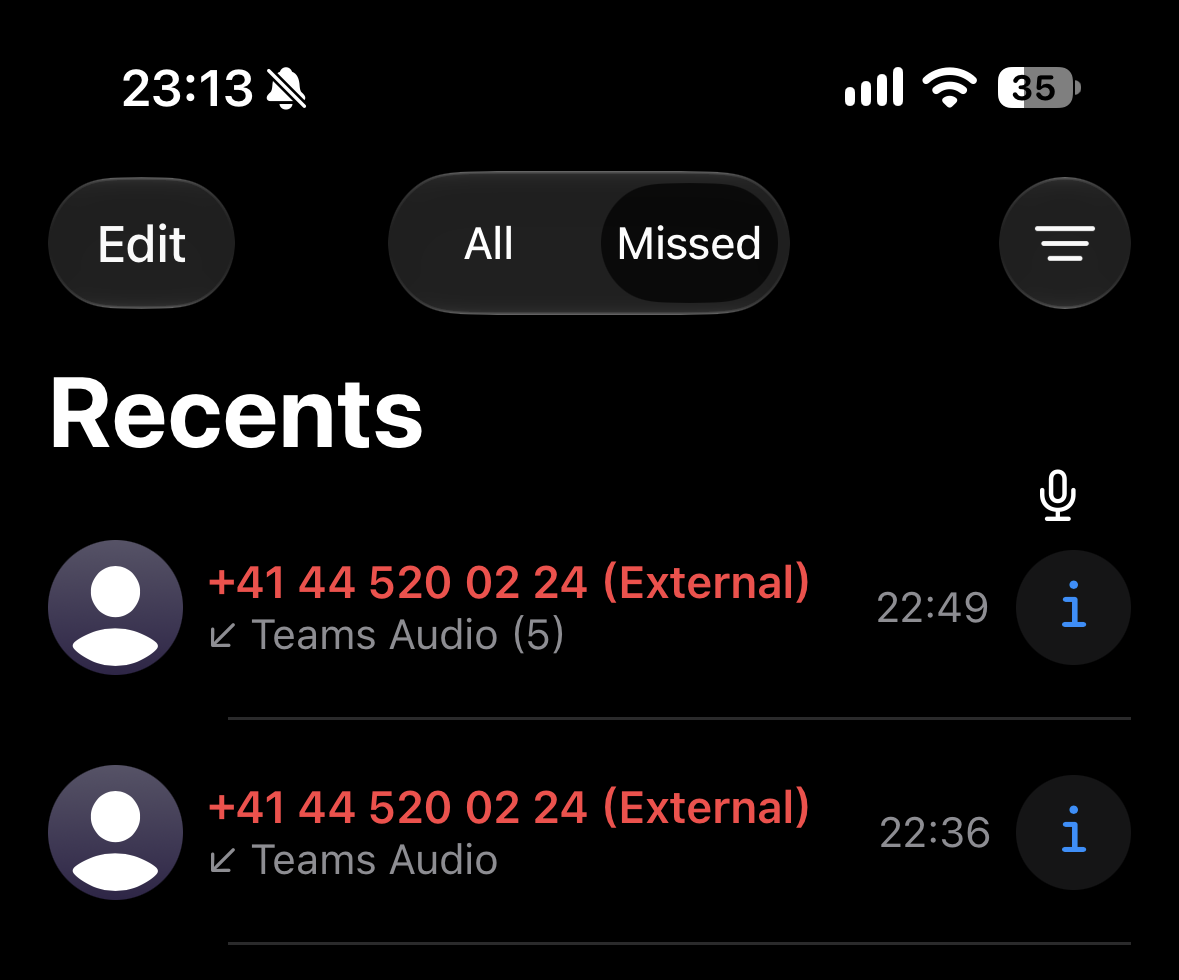
The Android app does a better job here and shows the External indicator everywhere where there’s enough horizontal space.
Number Spoofing
Let’s get to the interesting part. Anyone that works in the telecommunication industry knows that using a different CLIP (Calling Line Identification Presentation) is quite easy compared to some other technologies like email. While this is legal in many countries and there are legitimate use cases for it, sadly, many scammers take advantage of this as well.
I wanted to test what happens when a bad actor is calling you using a phone number as their outgoing caller ID which is part of your own number range for Teams phone number assignments. Bear in mind that most companies list at least 2-3 phone numbers publicly on their website so they’re not that hard to come by.
Test Nr. 1
In my lab tenant, I have mostly Calling Plan users. With Direct Routing, numbers are hosted at an external phone operator so there is no way for Teams to verify numbers before they’re assigned to users. I can basically assign any number I like to a user as a Direct Routing number. Of course calling will only work if the routing is configured correctly, but this is enough for a first test.
I’ve assigned the number bewlo to Emma. This number is not configured in Teams. It’s on a VoIP account for which I have an app to make calls.

Teams now knows that this number is assigned to Emma when I type it Olivia’s dial pad because of RNL (Reverse Number Lookup).
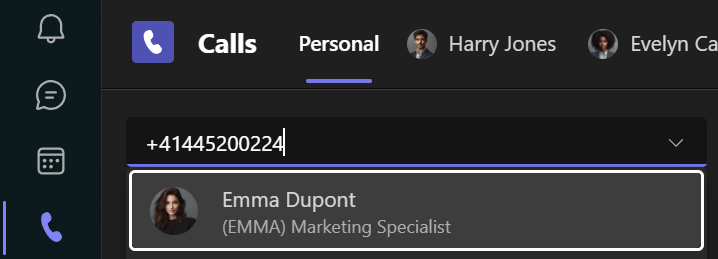
When I call the number without selecting Emma’s name from the drop down menu first, Teams shows that it’s calling the external number. But I can see the call ring on Emma’s Teams account. Teams always establishes a Teams native call when a number is assigned to another user. Once the call hits Emma’s voicemail, it’s clearly visible that this was an internal call.

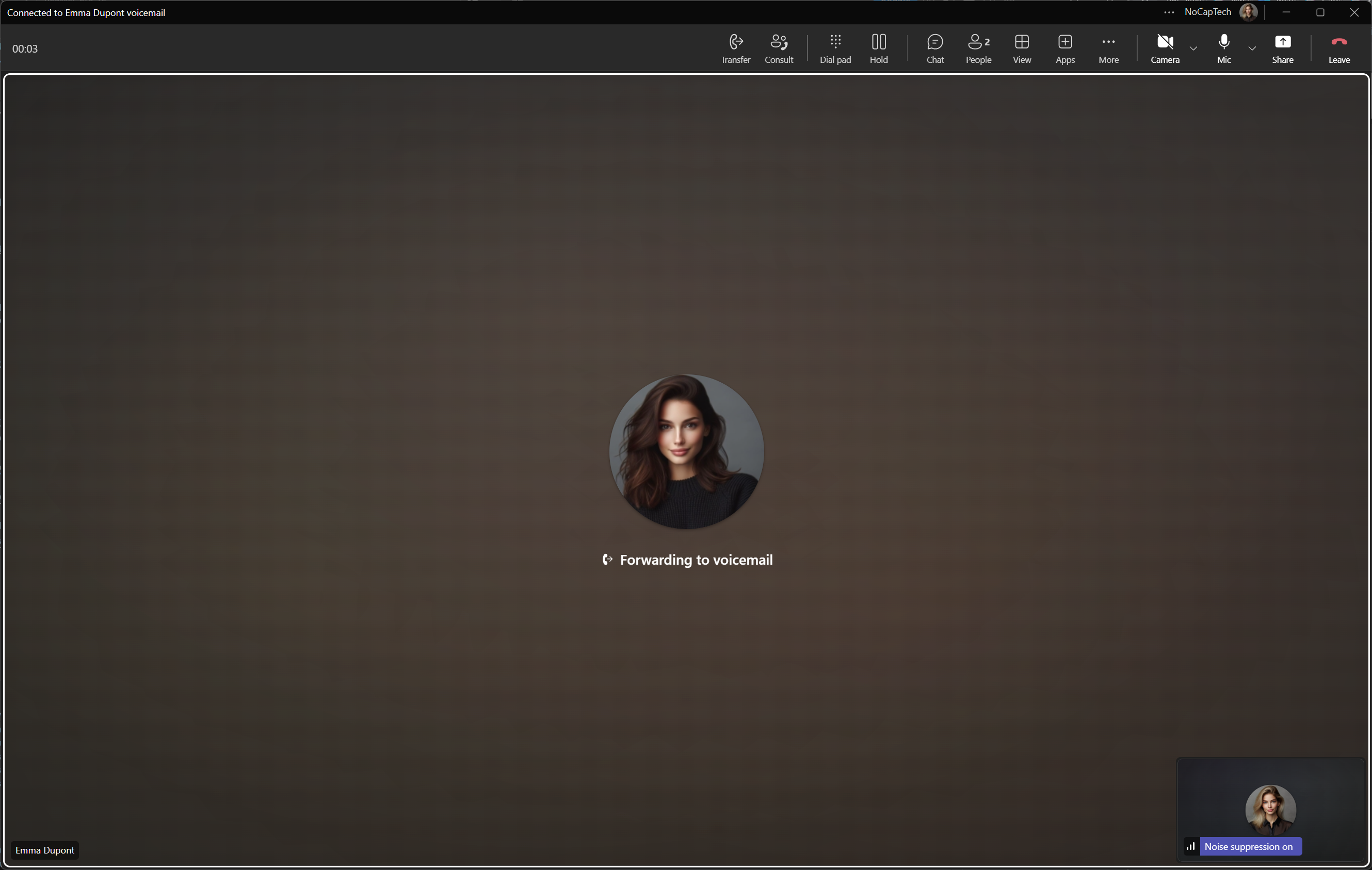
The point of this exercise is to establish that Teams recognizes Emma’s number as an internal number, even if it is technically not configured in my tenant. Well, it’s assigned to Emma but I haven’t set up any Direct Routing for it.
Now I use my VoIP account with that same number and call Olivia.
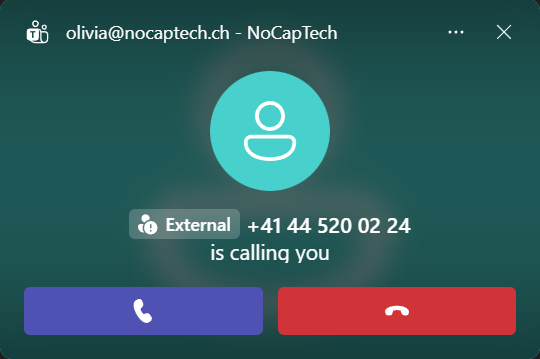
The call is correctly labelled as external, even though this number is assigned to one of my internal users. This is already a very strong indication that even if somebody is spoofing one of your internal numbers assigned to Teams users, it will still be labelled as External.
Test Nr. 2
To be absolutely sure, I wanted to test and verify this by placing a call using a CLIP of one of my Calling Plan numbers that are actually working in my tenant. For this, I’ve received some much appreciated help from my friends at Sipcall. With my permission, they were kind enough to set their CLIP to the number assigned to Olivia and place a call to Evelyn.
It’s the same principle as before. Here you can see Olivia’s number and that RNL is working.
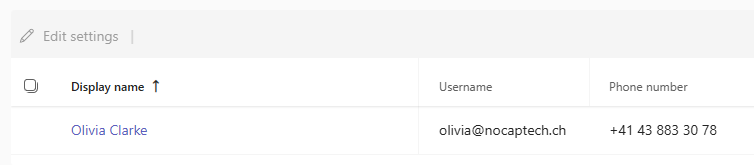
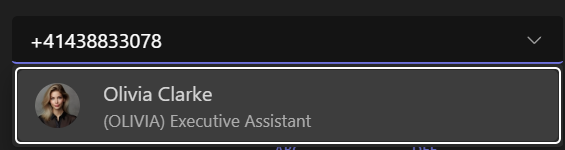
When I got the call with the “spoofed” number, it was correctly labelled as External-Unfamiliar.
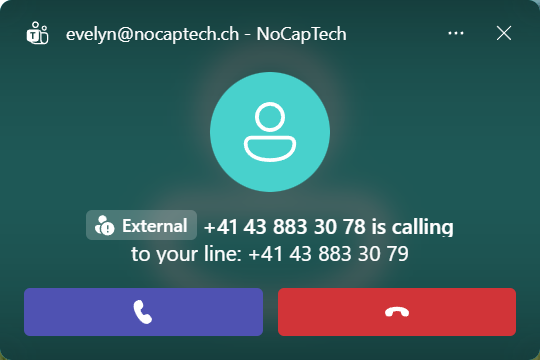
The call history is showing the phone number and not Olivia’s name. (You can ignore the To your line: +41 .. part. This test account has a secondary number assignment.)

When I call the number back, it’s going to Olivia as a Teams call, like in test number 1.
Addendum
Note that I did not have either test number configured as any user’s Entra ID business or mobile phone number during these tests. To cover all bases, I’ve now set my VoIP number as Emma’s mobile number in Entra ID to see if the toast looks any different.
After allowing some time for the change to propagate, the toast now shows the name from Entra ID but still displays the External-Unfamiliar badge.
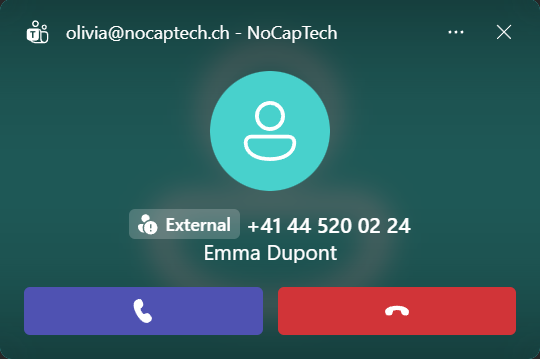
I couldn’t perform test number 2 with the phone number configured on an Entra ID user again on my own. But since it’s basically the same scenario, I assume that its outcome would be the same. The only difference is that test number 2 was placed using a CLIP that differed from the actual caller number.
Summary
On outgoing calls, Teams will always recognize when you call a number that is assigned to another internal user in Teams and start a Teams audio call instead. Therefore, the tested scenarios are technically not possible to reproduce with internal accounts only.
The outcomes above are only possible when a CLIP has been manipulated (Test #2) or when you assigned a number to a user that’s not even configured for Teams phone in your tenant (Test #1). You should never receive an external call from a colleague that is also configured for Teams phone, even if they dial your number and not call by name.
This is great news. It looks like Teams will always show the External badge based on how a call was received technically (PSTN or internal) rather than solely based on whether the number is known to your tenant through a Teams number assignment/RNL.
In fact, RNL doesn’t even seem to come into play for inbound call toasts. By the looks of it, caller names are only provided by Entra ID and saved contacts.
Incoming calls from guests or federated calls are also labelled correctly. And placing the badge before the display name makes it impossible for scammers to attempt and truncate it through very long display names. So, whenever you receive a call that is labelled External pay extra attention and treat it with vigilance as scammers spoofing a number that is saved to your contacts or is configured on an Entra ID user object still pose a risk because they show as External-Familiar. And of course keep in mind that mobile platforms don’t support displaying the badges in all places.
The trust indicators Learn article is a very valuable resource and I recommend that any IT administrator familiarizes themselves with what the different badges and icons mean.
Thanks again to Sipcall for participating in this research. Knowing that spoofed internal numbers will indeed be labelled as External at least provides some comfort in a world full of emerging threats.